

Σενάριο
Μια εταιρεία εκδηλώσεων σχεδιάζει ένα μονοήμερο συνέδριο που έχει τις ακόλουθες απαιτήσεις:
- 450 εισιτήρια θα πωληθούν μέσω του υφιστάμενου δικτυακού τόπου WordPress της εταιρείας διοργάνωσης με τη χρήση WooCommerce
- Ο αγοραστής πρέπει να επιλέξει τον τύπο του εισιτηρίου (Delegate, Standard ή Student) που θα καθορίσει το κόστος του εισιτηρίου.
- Κάθε τύπος εισιτηρίου έχει έναν καθορισμένο αριθμό διαθέσιμων εισιτηρίων, ο οποίος θα πρέπει να ανέρχεται συνολικά σε 350 εισιτήρια.
- Τα εισιτήρια μπορούν να αγοραστούν από ένα άτομο για λογαριασμό πολλών συμμετεχόντων.
- Τα μηνύματα ηλεκτρονικού ταχυδρομείου για τα εισιτήρια πρέπει να αποστέλλονται απευθείας σε μεμονωμένους συμμετέχοντες.
- Οι παραλλαγές πρέπει να εμφανίζονται σε διάταξη πλέγματος πίνακα
- Τα ακόλουθα πεδία πρέπει να καταγράφονται για κάθε συμμετέχοντα: Τηλέφωνο, εταιρεία, ονομασία, μέγεθος μπλούζας και διατροφικές απαιτήσεις.
- Μόλις κλείσουν οι πωλήσεις εισιτηρίων, η εταιρεία εκδηλώσεων πρέπει να εξάγει μια λίστα όλων των συμμετεχόντων που μπορεί να εισαχθεί στο σύστημα CRM.
- Οι συμμετέχοντες πρέπει να κάνουν check-in στην εγγραφή κατά την άφιξή τους στην εκδήλωση.
- Η εταιρεία διοργάνωσης πρέπει να εκτυπώσει ετικέτες ονομάτων που θα δοθούν στους συμμετέχοντες κατά την εγγραφή.
Ακολουθεί ένα παράδειγμα ενός τέτοιου γεγονότος: Συνέδριο
Σε αυτό το έγγραφο βοήθειας, θα περιγράψουμε την ακριβή διαμόρφωση που απαιτείται για την επίτευξη όλων των παραπάνω απαιτήσεων.
Αυτό το έγγραφο βοήθειας υποθέτει ότι έχετε ήδη FooEvents και WooCommerce εγκατεστημένο σε ένα WordPress ιστοσελίδα και να έχετε μια βασική κατανόηση του τρόπου λειτουργίας του FooEvents. Εάν είστε νέοι στο FooEvents, θα πρέπει να διαβάσετε το Ξεκινώντας οδηγός για να σας βοηθήσει να ξεκινήσετε.
Προϊόντα που χρησιμοποιούνται
Συνιστώμενη δέσμη #
Όλα τα πρόσθετα που απαιτούνται για τη ρύθμιση μιας διάσκεψης μπορούν να αγοραστούν μεμονωμένα, ωστόσο, περιλαμβάνονται επίσης στο FooEvents Premium Bundle. Αυτή η δέσμη περιλαμβάνει επίσης το FooEvents Εισιτήρια PDF plugin και FooEvents Πολυήμερο που χρησιμοποιούνται συχνά κατά τη δημιουργία μιας εκδήλωσης τύπου συνεδρίου.
Ρύθμιση
Δημιουργήστε μια εκδήλωση #
Πηγαίνετε στο Προϊόντα > Προσθήκη προϊόντος στο κύριο μενού και συμπληρώστε τα τυπικά πεδία του προϊόντος, όπως ο τίτλος, το σώμα, η περιγραφή, οι ετικέτες, οι κατηγορίες, η χαρακτηριστική εικόνα και η γκαλερί, όπως απαιτείται.
Προχωρήστε στο Δεδομένα προϊόντος και επιλέξτε Μεταβλητό προϊόν από το Τύπος προϊόντος drop-down.
Χαρακτηριστικά και παραλλαγές #
Στη συνέχεια, πρέπει να δημιουργήσουμε παραλλαγές προϊόντων που θα επιτρέπουν στους αγοραστές να επιλέγουν μεταξύ διαφορετικών τύπων εισιτηρίων. Οι αγοραστές θα χρεώνονται με διαφορετικά ποσά ανάλογα με την επιλογή τους:
| Παραλλαγή | Τιμή | Διαθεσιμότητα αποθεμάτων |
| Αντιπρόσωπος | $499 | 50 |
| Πρότυπο | $299 | 250 |
| Φοιτητής | $0 (δωρεάν) | 100 |
| VIP | $599 | 50 |
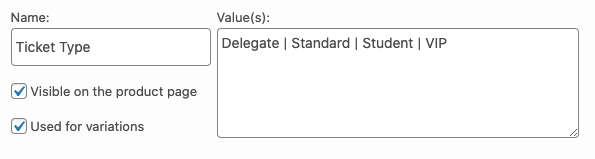
Πηγαίνετε στο Δεδομένα προϊόντος > Χαρακτηριστικά και δημιουργήστε ένα χαρακτηριστικό που ονομάζεται Τύπος εισιτηρίου. Στο Τιμές καθορίστε τις διάφορες επιλογές. Βεβαιωθείτε ότι έχετε ελέγξει το Χρησιμοποιείται για παραλλαγές επιλογή και Αποθήκευση χαρακτηριστικών.
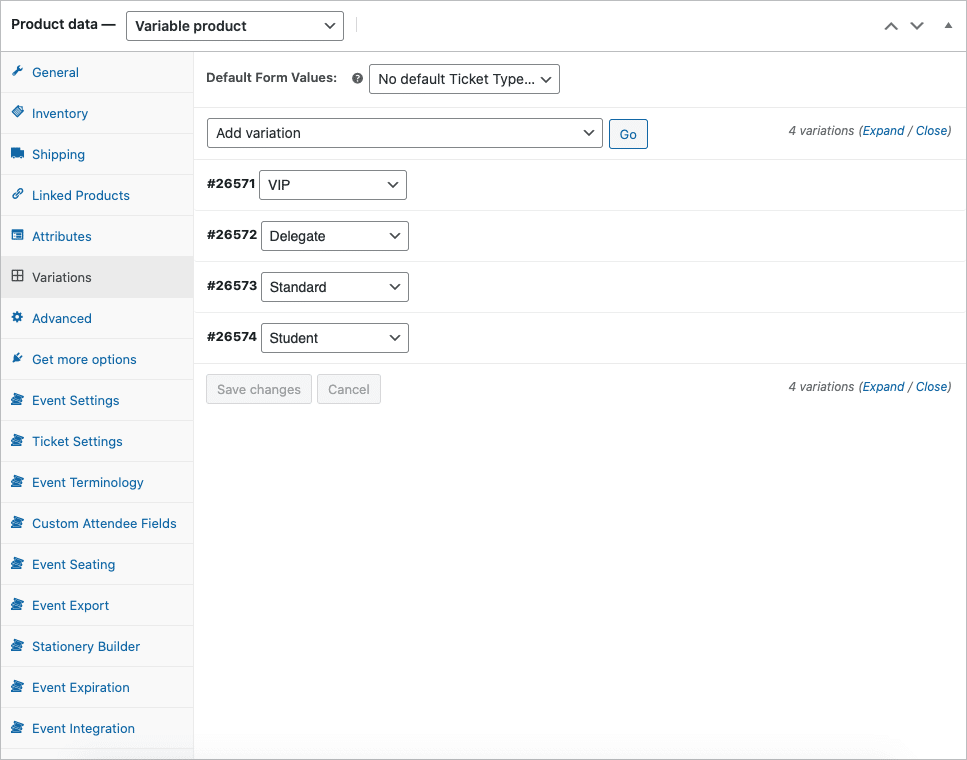
Πηγαίνετε στο Δεδομένα προϊόντος > Παραλλαγές. Χρησιμοποιήστε το Δημιουργία παραλλαγών από όλα τα χαρακτηριστικά επιλογή για τη δημιουργία των παραλλαγών.
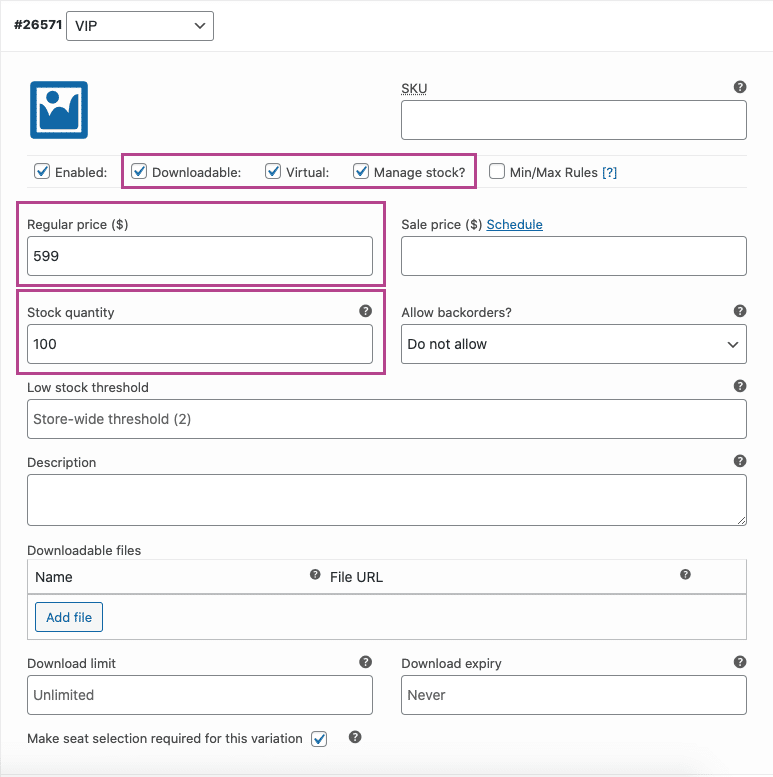
Ορίστε κάθε παραλλαγή σε Εικονικό και Κατεβάστε το και να καθορίσει τη σχετική τιμή. Ενεργοποιήστε το Διαχείριση αποθεμάτων και ορίστε την ποσότητα των διαθέσιμων εισιτηρίων για κάθε τύπο εισιτηρίου χρησιμοποιώντας την επιλογή Ποσότητα αποθέματος πεδίο.
Ρυθμίσεις συμβάντος #
Πηγαίνετε στο Δεδομένα προϊόντος > Ρυθμίσεις συμβάντος
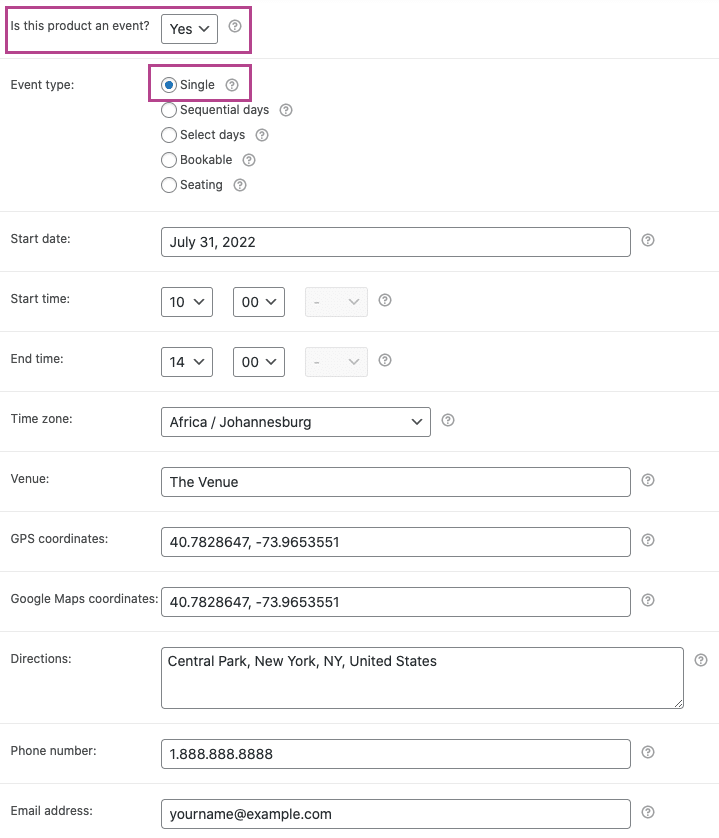
Για να ενεργοποιήσετε τη λειτουργία συμβάντων, ορίστε το 'Είναι αυτό το προϊόν ένα γεγονός;' drop-down σε 'Ναι'.
Ορίστε την επιλογή Τύπος συμβάντος σε 'Ενιαία' και συμπληρώστε τα τυπικά πεδία συμβάντων όπως απαιτείται.
Ενεργοποιήστε τις ακόλουθες επιλογές για να διασφαλίσετε την καταγραφή των ατομικών πληροφοριών των συμμετεχόντων.
- Ενεργοποιημένο - Συλλαμβάνετε το πλήρες όνομα και τη διεύθυνση ηλεκτρονικού ταχυδρομείου του συμμετέχοντα;
- Ενεργοποιημένο - Καταγραφή του αριθμού τηλεφώνου του συμμετέχοντα; (προαιρετικό)
- Ενεργοποιημένο - Καταγραφή ονόματος εταιρείας συμμετέχοντος; (προαιρετικό)
- Ενεργοποιημένο - Να καταγράψετε τον προσδιορισμό των συμμετεχόντων; (προαιρετικό)
Οι επιλογές που σχετίζονται με τις κρατήσεις μπορούν να αγνοηθούν και οι υπόλοιπες επιλογές μπορούν να ρυθμιστούν με βάση τις προτιμήσεις σας.
Ρυθμίσεις εισιτηρίων #
Πηγαίνετε στο Δεδομένα προϊόντος > Ρυθμίσεις εισιτηρίων
Ορίστε το σχετικό θέμα εισιτηρίων, λογότυπο και εικόνα κεφαλίδας. Μπορείτε επίσης να αλλάξετε το θέμα του email του εισιτηρίου χρησιμοποιώντας την επιλογή Θέμα Email εισιτηρίου πεδίο.
πεδίο. Αν θέλετε να μεταφέρετε πρόσθετες πληροφορίες που θα μπορούν να δουν μόνο οι συμμετέχοντες, μπορείτε να χρησιμοποιήσετε το πεδίο Σώμα email εισιτηρίου πεδίο για να επιτευχθεί αυτό.
Ενεργοποιήστε τις ακόλουθες ρυθμίσεις εισιτηρίου, όπως απαιτείται:
- Ενεργοποιημένο - Εμφάνιση των στοιχείων του αγοραστή ή του συμμετέχοντα στο εισιτήριο;
- Ενεργοποιημένο - Εμφάνιση προσαρμοσμένων λεπτομερειών για τους συμμετέχοντες στο εισιτήριο; (προαιρετικό)
- Ενεργοποιημένο - Εμφάνιση της επιλογής "Προσθήκη στο ημερολόγιο" στο εισιτήριο; (προαιρετικό)
- Ενεργοποιημένο - Να επισυνάψετε αρχείο ICS ημερολογίου στο email του εισιτηρίου; (προαιρετικό)
- Ενεργοποιημένο - Εμφάνιση ημερομηνίας και ώρας στο εισιτήριο; (προαιρετικό)
- Ενεργοποιημένο - Εμφάνιση γραμμωτού κώδικα στο εισιτήριο; (προαιρετικό)
- Ενεργοποιημένο - Εμφάνιση τιμής στο εισιτήριο; (προαιρετικό)
- Ενεργοποιημένο - Να στείλετε το εισιτήριο με email στον συμμετέχοντα αντί για τον αγοραστή;
- Ενεργοποιημένο - Εισιτήρια με email;
Προσαρμοσμένα πεδία συμμετεχόντων #
Απαιτεί το FooEvents Προσαρμοσμένα πεδία συμμετεχόντων plugin.
Πηγαίνετε στο Δεδομένα προϊόντος > Προσαρμοσμένα πεδία συμμετεχόντων
Δημιουργήστε προσαρμοσμένα πεδία συμμετεχόντων όπως απαιτείται. Τα πεδία των συμμετεχόντων θα εμφανίζονται στη σελίδα πληρωμής και μπορούν να συμπληρωθούν για κάθε μεμονωμένο συμμετέχοντα. Τα προσαρμοσμένα πεδία των συμμετεχόντων θα εμφανίζονται επίσης στις πληροφορίες του εισιτηρίου του συμμετέχοντα, οι οποίες μπορούν να προβληθούν στην περιοχή διαχείρισης του WordPress και στο Εφαρμογές FooEvents Check-ins.
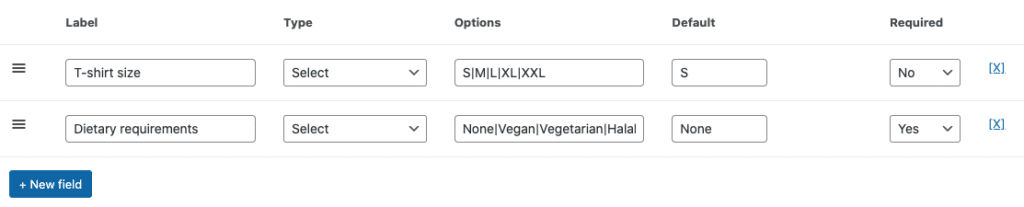
Αφού ελέγξετε όλες τις ρυθμίσεις, μπορείτε να Αποθήκευση και Δημοσίευση την εκδήλωσή σας. Στη συνέχεια, θα πρέπει να είναι ορατό στο front-end του ιστότοπού σας.
Διάταξη πίνακα παραλλαγών #
Από προεπιλογή, το WooCommerce θα εμφανίζει τις παραλλαγές σε ένα αναπτυσσόμενο πεδίο στη σελίδα του προϊόντος:

Χρήση του αυτό το απόσπασμα, μπορείτε να αλλάξετε την προεπιλεγμένη συμπεριφορά της σελίδας προϊόντος και να εμφανίσετε τις παραλλαγές σε διάταξη πίνακα.
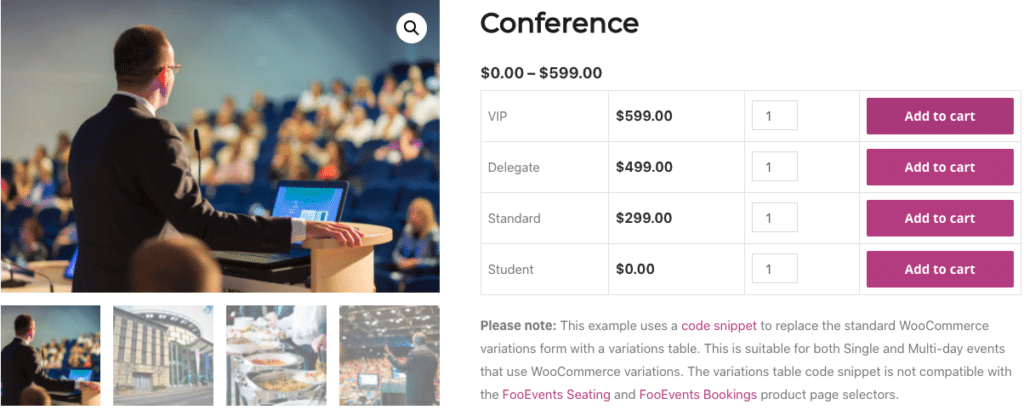
Σημαντικό: Αυτά τα αποσπάσματα παρέχονται ως ευγενική χορηγία και δεν αποτελούν μέρος της προσφοράς των προϊόντων FooEvents. Θεωρούνται προσαρμογές και δεν υποστηρίζονται επίσημα από την FooEvents. Ως εκ τούτου, δεν παρέχουμε υποστήριξη για τα αποσπάσματα και τις προσαρμογές σύμφωνα με την Όροι χρήσης. Παρακαλούμε χρησιμοποιήστε τα με δική σας ευθύνη.
Χρήση
Παρόμοια με αυτό το παράδειγμα επίδειξης, οι πελάτες σας θα πρέπει τώρα να είναι σε θέση να επιλέξουν έναν ή περισσότερους τύπους εισιτηρίων και να τους προσθέσουν στο καλάθι τους. Στη συνέχεια, μπορούν να προχωρήσουν στο ταμείο, όπου θα τους ζητηθεί να συμπληρώσουν τα σχετικά πεδία με τις πληροφορίες χρέωσης και τους συμμετέχοντες.
Εισιτήρια #
Μόλις ολοκληρωθεί η πληρωμή και η κατάσταση της παραγγελίας αλλάξει σε Ολοκληρωμένο, θα δημιουργηθεί ένα εισιτήριο και θα αποσταλεί σε κάθε συμμετέχοντα. Βάσει των ρυθμίσεων που έχουν ενεργοποιηθεί, το εισιτήριο θα περιλαμβάνει όλες τις πληροφορίες του συμμετέχοντα που έχουν καταγραφεί:
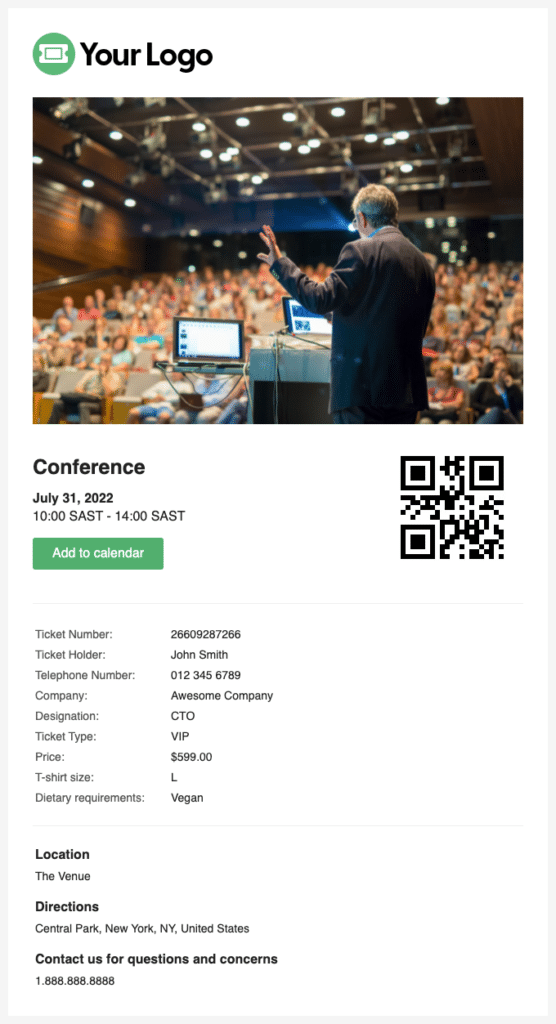
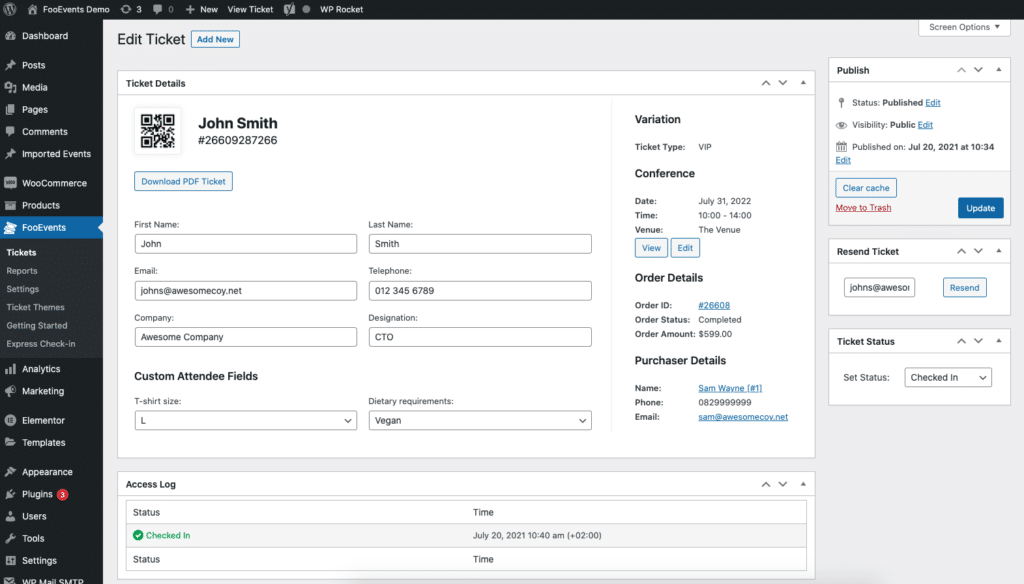
Το εισιτήριο μπορεί επίσης να προβληθεί στην περιοχή διαχείρισης του WordPress. Μεταβείτε στο Περιοχή διαχείρισης WordPress > FooEvents > Εισιτήρια και επιλέξτε το σχετικό εισιτήριο:
Εξαγωγή συμμετεχόντων #
Μπορείτε να εξαγωγή αρχείου CSV για κάθε εκδήλωση που περιλαμβάνει όλα τα αριθμοί εισιτηρίων, προσαρμοσμένα πεδία συμμετεχόντων, δεδομένα check-in, αγοραστής και στοιχεία των συμμετεχόντων. Το CSV μπορεί στη συνέχεια να εισαχθεί στο σύστημα CRM σας.
Εναλλακτικά, μπορείτε να χρησιμοποιήσετε μια λύση όπως Σύντηξη WP, το οποίο προσφέρει ενσωμάτωση με το FooEvents που σας επιτρέπει να προσθέτετε δυναμικά τους συμμετέχοντες σε εκδηλώσεις ως επαφές στο CRM της επιλογής σας. Μπορείτε επίσης να εφαρμόσετε προαιρετικά ετικέτες με βάση το εισιτήριο της εκδήλωσης που αγοράστηκε.
Check-ins συμμετεχόντων #
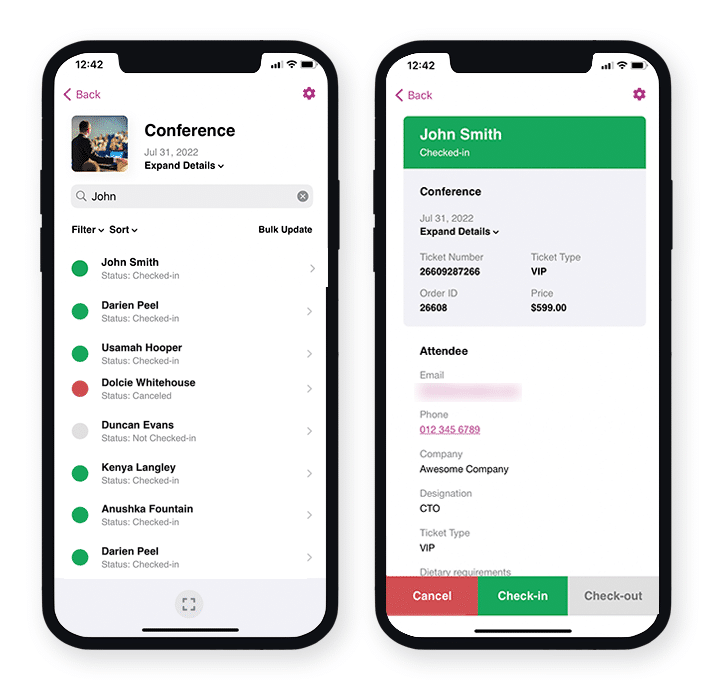
Η κατάσταση ενός εισιτηρίου μπορεί να αλλάξει από Δεν έχει γίνει check in στο Checked In, Ακυρώθηκε ή Απλήρωτη. Αυτό μπορεί να γίνει με την επεξεργασία του εισιτηρίου στο Περιοχή διαχείρισης WordPress, χρησιμοποιώντας το FooEvents Express Check-ins plugin ή χρησιμοποιώντας το δωρεάν Εφαρμογή FooEvents Check-ins (δημοφιλής).
Εκτύπωση ετικετών ονομάτων #
Το ενσωματωμένο FooEvents Κατασκευαστής χαρτικών επιτρέπει τον εύκολο σχεδιασμό και την εκτύπωση προσαρμοσμένων ετικετών ονομάτων, βραχιολιών, εισιτηρίων, κονκάρδων και εξατομικευμένων ετικετών μέσω ενός διαισθητικού drag & drop interface.
Ερωτήσεις και σχόλια
Έχετε κάποια ερώτηση πριν αγοράσετε; Παρακαλούμε επικοινωνήστε. Αν είστε έτοιμοι να ξεκινήσετε, μπορείτε να αγοράσετε μια άδεια χρήσης εδώ.
Έχετε ήδη αγοράσει και χρειάζεστε βοήθεια; Επικοινωνήστε με την ομάδα υποστήριξής μας