
Παρακαλώ σημειώστε: After connecting, changing, or renewing a license, it may take a short while before automatic updates reflect in WordPress due to caching and license synchronization.
If you purchased from FooEvents.com:
- Συνδεθείτε στο Ο λογαριασμός μου on FooEvents.com.
- Ανοίξτε το Άδειες τμήμα.
- Find the FooEvents plugin or bundle that you want to use.
- Κάντε κλικ στο Connect to site.
- Select an existing site or add a new website URL.
- Once connected, copy the generated FooEvents κλειδί άδειας χρήσης.
- Πλοηγηθείτε στο FooEvents > Ρυθμίσεις > Άδεια in your WordPress admin dashboard.
- Paste your license key into the FooEvents κλειδί άδειας χρήσης field and click Αποθήκευση αλλαγών.
Συμβουλή: FooEvents uses one license key per website. If you have purchased multiple FooEvents plugins or bundles for the same website, you can connect them to the same site and use the same license key for all FooEvents plugins installed on that website.
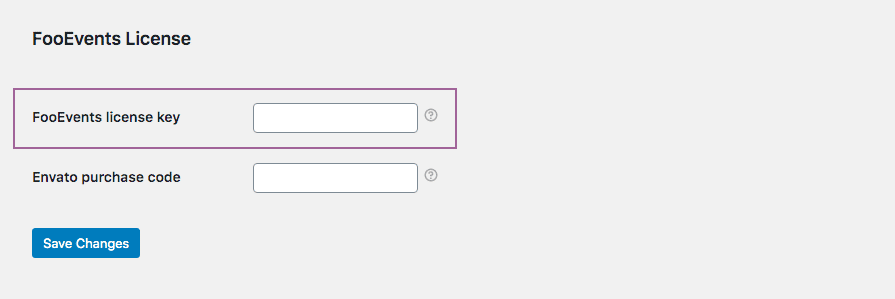
FooEvents POS customers must also confirm that the license key is saved correctly in FooEvents POS > Ρυθμίσεις > Γενικά.

Εάν αγοράσατε το πρόσθετο από το CodeCanyon:
- Πλοηγηθείτε στο FooEvents > Ρυθμίσεις > Άδεια in your WordPress admin dashboard.
- Paste your Envato purchase code into the Κωδικός αγοράς Envato field and click Αποθήκευση αλλαγών.
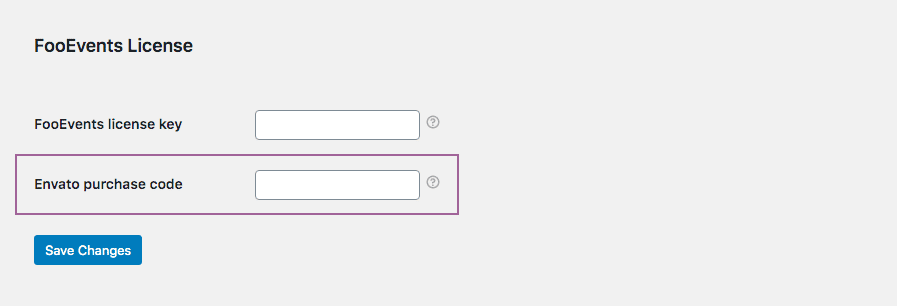
If you purchased from FooEvents.com and CodeCanyon:
- Connect your FooEvents.com purchases to your site and copy your FooEvents license key.
- Get your Envato purchase code from your CodeCanyon account.
- Πλοηγηθείτε στο FooEvents > Ρυθμίσεις > Άδεια in your WordPress admin dashboard.
- Paste your FooEvents license key into the FooEvents κλειδί άδειας χρήσης field and your Envato code into the Κωδικός αγοράς Envato field, then click Αποθήκευση αλλαγών.
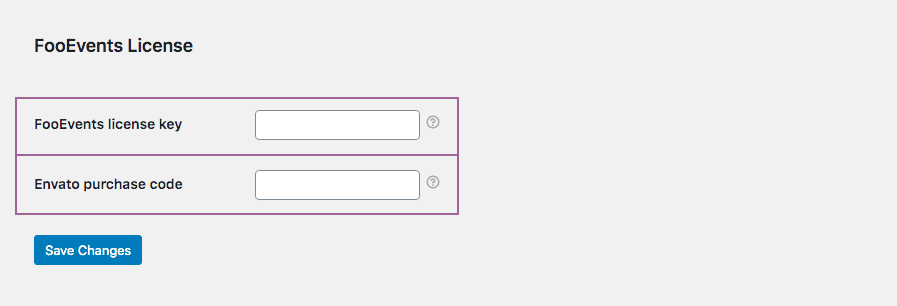
 English
  German
  Dutch
Dutch  Spanish
  Italian
  Portuguese
  French
  Polish
  Czech
Czech  Greek
Greek