
-
·
Jak wyświetlić lub ukryć określone produkty lub warianty w POS?
Możesz określić, czy pokazać lub ukryć konkretny produkt w FooEvents POS, edytując produkt w backendzie WooCommerce i klikając kartę Ustawienia POS. Produkt będzie domyślnie wyświetlany w POS, chyba że wyraźnie odznaczysz ustawienie "Pokaż ten produkt w POS", które zapobiega wyświetlaniu produktu w POS.
-
·
Czy FooEvents POS integruje się z wtyczkami innych firm?
Wtyczka FooEvents POS współpracuje z rozszerzeniem WooCommerce Product Add-Ons. FooEvents POS nie integruje się konkretnie z żadnymi innymi wtyczkami innych firm, takimi jak WordPress i WooCommerce, np. WooCommerce Product Bundles i WooCommerce Min/Max Orders, chociaż chcielibyśmy dodać obsługę tych wtyczek w przyszłości. Niektóre wtyczki innych firm mogą jednak nadal działać, w zależności od funkcji, które realizują,…
-
·
Jakie języki obsługuje FooEvents POS?
Aplikacja FooEvents POS oferuje obecnie natywną obsługę następujących języków: Aby korzystać z aplikacji FooEvents POS w jednym z obsługiwanych języków, należy ustawić go jako język domyślny w ustawieniach przeglądarki internetowej, a następnie odświeżyć stronę aplikacji.
-
·
Instalacja FooEvents POS
Krok 1: Zainstaluj wtyczkę FooEvents POS Kup licencję na wtyczkę FooEvents POS, pobierz wtyczkę ze swojego konta FooEvents i zainstaluj ją na swojej stronie internetowej Krok 2: Zainstaluj dodatkowe rozszerzenia FooEvents Krok 3: Skonfiguruj FooEvents POS Przejdź do sekcji FooEvents POS > Ustawienia w panelu administracyjnym FooEvents i wprowadź swój klucz licencyjny FooEvents (jeśli…
-
·
Wózek
The cart stores the items of an Order while it is still in progress before payment is received and the order is completed. To add items to the cart, simply click on the product thumbnail and it will instantly be added to the cart. Products that contain variations are signified by a small grid icon…
-
·
Kasa
Once products have been added to the cart, you will need to complete the checkout process so that the customer’s order can be created in your WooCommerce store and tickets generated for event products. To start the checkout process, click the Checkout button at the bottom right of the screen. The sections displayed in the…
-
·
Zamówienia
The typical workflow of processing an order through FooEvents POS is as follows: Managing orders When creating an order, FooEvents POS connects to your WooCommerce store and passes the order information to WooCommerce which then generates a standard WooCommerce order. Additional meta is added to the order which helps identify the order as a POS…
-
·
Klienci
Customers that are displayed or created within the FooEvents POS app are stored as WooCommerce customers within your database. WooCommerce customers are essentially WordPress users that have the ‘Customer’ user role. If you are new to WordPress, you can learn more about WordPress users. Customers can be created, edited and viewed within the FooEvents POS…
-
·
Produkty
Products are the items that are sold through your store. Products are typically managed through the WooCommerce area in your WordPress dashboard. The FooEvents POS app connects to your WooCommerce store and retrieves the relevant product information. Adding Products Products are added to your store via the WooCommerce backend. FooEvents POS then connects to your…
 English
 German
 Dutch
 Spanish
 Italian
 Portuguese
 French
 Polish
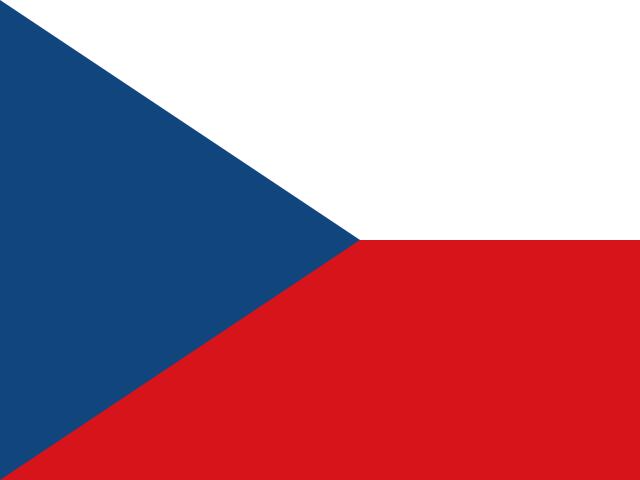 Czech
 Greek