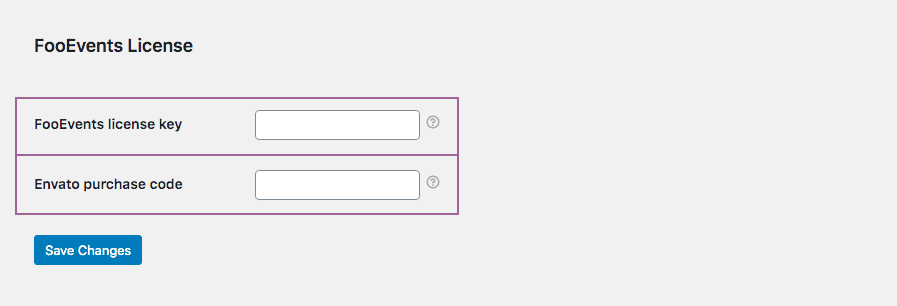
Upozornění: After connecting, changing, or renewing a license, it may take a short while before automatic updates reflect in WordPress due to caching and license synchronization.
If you purchased from FooEvents.com:
- Přihlaste se do Můj účet na webu FooEvents.com.
- Otevřete Licence sekce.
- Vyhledejte plugin nebo balíček FooEvents, který chcete použít.
- Klikněte na Připojit k webu.
- Vyberte existující web nebo přidejte novou URL adresu webových stránek.
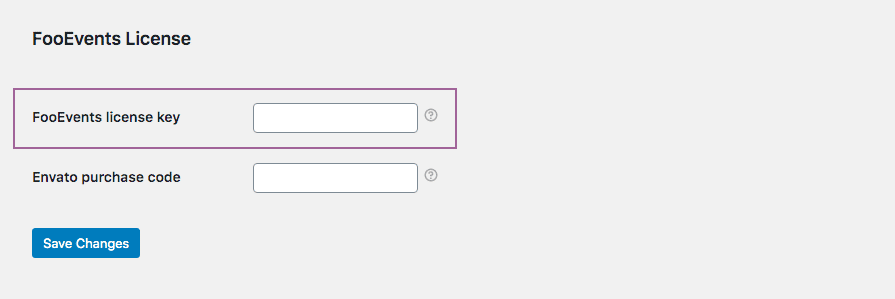
- Once connected, copy the generated Licenční klíč FooEvents.
- Přejděte na FooEvents > Nastavení > Licence in your WordPress admin dashboard.
- Vložte svůj licenční klíč do Licenční klíč FooEvents pole a klikněte Uložení změn.
Tip: FooEvents uses one license key per website. If you have purchased multiple FooEvents plugins or bundles for the same website, you can connect them to the same site and use the same license key for all FooEvents plugins installed on that website.
FooEvents POS customers must also confirm that the license key is saved correctly in FooEvents POS > Nastavení > Obecné.

Pokud jste si zakoupili plugin od CodeCanyon:
- Přejděte na FooEvents > Nastavení > Licence in your WordPress admin dashboard.
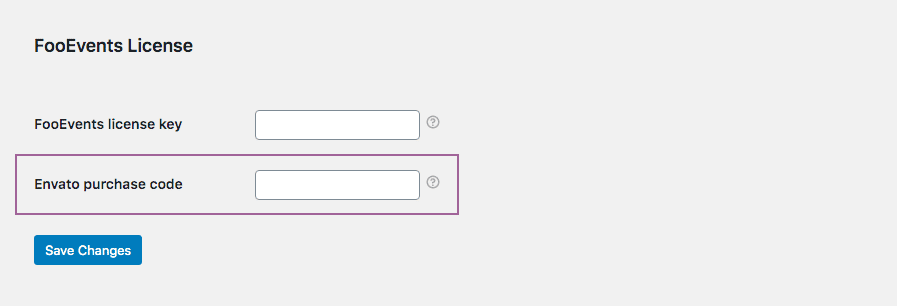
- Paste your Envato purchase code into the Nákupní kód Envato pole a klikněte Uložení změn.
If you purchased from FooEvents.com and CodeCanyon:
- Connect your FooEvents.com purchases to your site and copy your FooEvents license key.
- Get your Envato purchase code from your CodeCanyon account.
- Přejděte na FooEvents > Nastavení > Licence in your WordPress admin dashboard.
- Paste your FooEvents license key into the Licenční klíč FooEvents field and your Envato code into the Nákupní kód Envato field, then click Uložení změn.