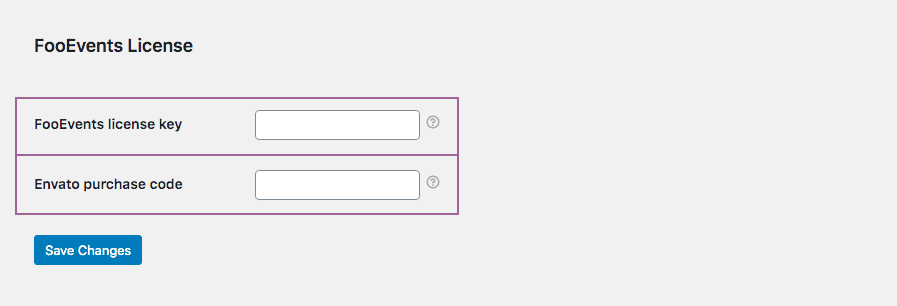
Atenção: After connecting, changing, or renewing a license, it may take a short while before automatic updates reflect in WordPress due to caching and license synchronization.
If you purchased from FooEvents.com:
- Iniciar sessão em A minha conta no site FooEvents.com.
- Abrir o Licenças secção.
- Encontre o plugin ou pacote FooEvents que pretende utilizar.
- Clicar Ligar ao site.
- Selecione um site existente ou adicione o URL de um novo site.
- Once connected, copy the generated Chave de licença FooEvents.
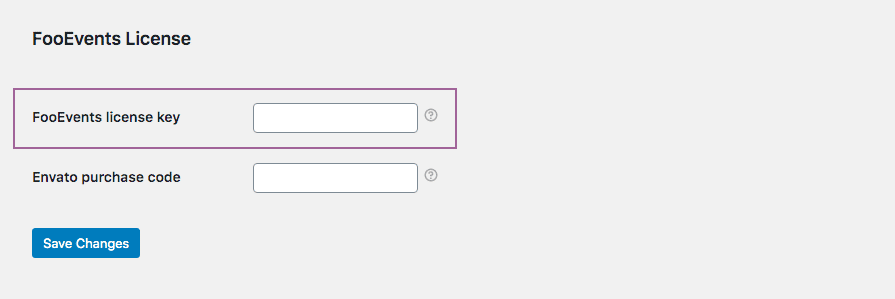
- Navegar para FooEvents > Definições > Licença in your WordPress admin dashboard.
- Cole a sua chave de licença em Chave de licença FooEvents campo e clique Guardar alterações.
Sugestão: FooEvents uses one license key per website. If you have purchased multiple FooEvents plugins or bundles for the same website, you can connect them to the same site and use the same license key for all FooEvents plugins installed on that website.
FooEvents POS customers must also confirm that the license key is saved correctly in FooEvents POS > Definições > Geral.

Se comprou o plugin na CodeCanyon:
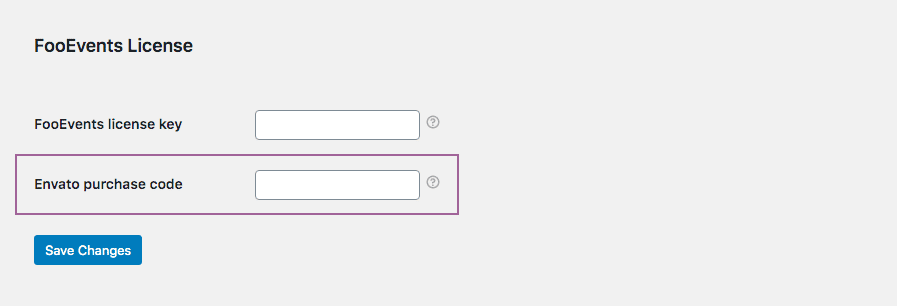
- Navegar para FooEvents > Definições > Licença in your WordPress admin dashboard.
- Paste your Envato purchase code into the Código de compra Envato campo e clique Guardar alterações.
If you purchased from FooEvents.com and CodeCanyon:
- Connect your FooEvents.com purchases to your site and copy your FooEvents license key.
- Get your Envato purchase code from your CodeCanyon account.
- Navegar para FooEvents > Definições > Licença in your WordPress admin dashboard.
- Paste your FooEvents license key into the Chave de licença FooEvents field and your Envato code into the Código de compra Envato field, then click Guardar alterações.