

FooEvents displays a customer’s event tickets directly on the WooCommerce Thank You page after checkout. This gives customers easy access to their ticket details without needing to wait for an email or log into their account.
Depending on your event setup, the thank you page can display information such as the ticket number, attendee details, booking date and slot details, and a barcode or QR code.
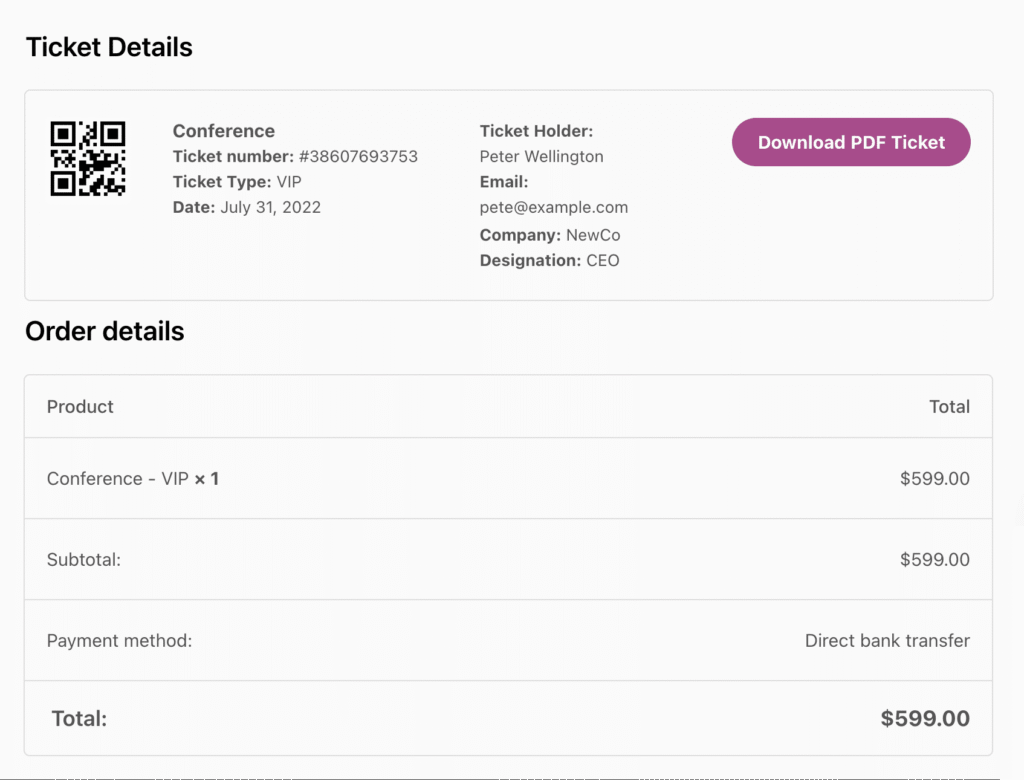
Cómo funciona #
Tickets only appear on the thank you page once ticket generation has been triggered for the required WooCommerce order status.
By default, FooEvents generates tickets when an order reaches the Completado status, unless you have changed this using the Enviar sobre el estado del pedido ajuste.
If the order has not yet reached a status that generates tickets, FooEvents will display a pending message instead of the ticket cards. This message is customizable, which allows you to explain to customers when their tickets will become available.
Configure when tickets are generated #
To choose when tickets are created and sent, go to:
WordPress Admin > FooEvents > Settings > General
Then review the Enviar sobre el estado del pedido ajuste.
If you keep the default configuration, tickets will appear on the thank you page once the order is marked Completado. If you select different order statuses, tickets will only display when the order reaches one of those selected statuses.
Disable thank you page tickets #
If you do not want tickets to appear on the thank you page, go to:
WordPress Admin > FooEvents > Settings > Tickets
En el Thank You Page section, enable Disable Thank You page tickets.
When this setting is enabled, FooEvents will not output tickets on the thank you page.
Customize the pending message #
If ticket generation is still pending, customers will see a waiting message instead of their tickets.
To edit this message, go to:
WordPress Admin > FooEvents > Settings > Tickets
En el Thank You Page section, edit Ticket pending payment text.
This lets you provide clear instructions or set expectations while the order is still waiting to reach a ticket-generating status.
PDF ticket downloads #
Si utiliza FooEvents Entradas PDF, customers can also download PDF versions of their tickets from the thank you page once the tickets are available.
For this to work, Activar la descarga de entradas en PDF must be enabled here:
WordPress Admin > FooEvents > Settings > PDF
Please note that if you are using the FooEvents Entradas PDF plugin, tickets will only display once all PDFs have been generated successfully. Depending on your server resources, this can sometimes take a few seconds per PDF.
Plugin version requirements #
To ensure this feature works correctly, update both plugins to the following versions or newer:
- FooEvents for WooCommerce: v2.0.4
- FooEvents PDF Tickets: v2.0.5