
Do not use these versions of FooEvents, FooEvents Seating, or FooEvents Bookings on a live site or for a live event. Only use the beta versions for testing on a staging or test site.
We’ve completed development on the new FooEvents Seating Version 2 and need your help testing it. Please configure and test FooEvents Seating Version 2 Beta on a staging or test site only.
Please thoroughly test the full seating workflow, including building seating charts, configuring and managing seating for a product, selecting and reserving seats, purchasing tickets, and managing orders. Let us know if you encounter any issues or feel anything is missing.
Download and install the following beta plugins to test the new FooEvents Seating experience:
- FooEvents (Version 2.0.16-seating-beta.4)
- FooEvents Sièges (Version 2.0.2-seating-beta.4)
- FooEvents Réservations (Version 2.0.16-seating-beta.4)
- For any other FooEvents extensions, you can use the latest available versions. Ignore plugin update messages.
Thanks again for helping us test and improve the new FooEvents Seating.
Introduction
FooEvents Seating has been rebuilt from the ground up to deliver a more flexible, reliable, and powerful seating experience, shaped by years of customer feedback and real-world event requirements.
The new seating system gives you the freedom to create virtually any seating arrangement without the limitations of traditional row-based layouts. Instead of building a seating setup from scratch for every event, you can create highly customizable, reusable seating chart templates and apply them across multiple events, venues, dates, and time slots.
At the core of the new system is a completely redesigned reservation engine that validates seat availability and reservation ownership throughout the cart and checkout process to help prevent double bookings, incorrect assignments, and unexpected releases. It has also been optimized for mobile, making it easier for customers to select seats on any device.
The new FooEvents Seating Version 2 is fully integrated with FooEvents Réservations, allowing you to set up an event once and use the same seating chart across multiple bookable dates and time slots. Each date and time slot can be managed separately, including its own bookings, seat allocations, and seat selections.
The system also includes change histories for seating chart templates and product-level seating changes, including manual releases and variation mappings. These logs are exportable, making them useful for troubleshooting, support, and reviewing seating-related admin activity.
This is not just an evolution of FooEvents Seating. It is a major step forward in our pursuit of the most flexible, reliable, and sophisticated event seating and booking system available for WordPress.
Pour commencer
Etape 1 : activer la nouvelle expérience d'assise
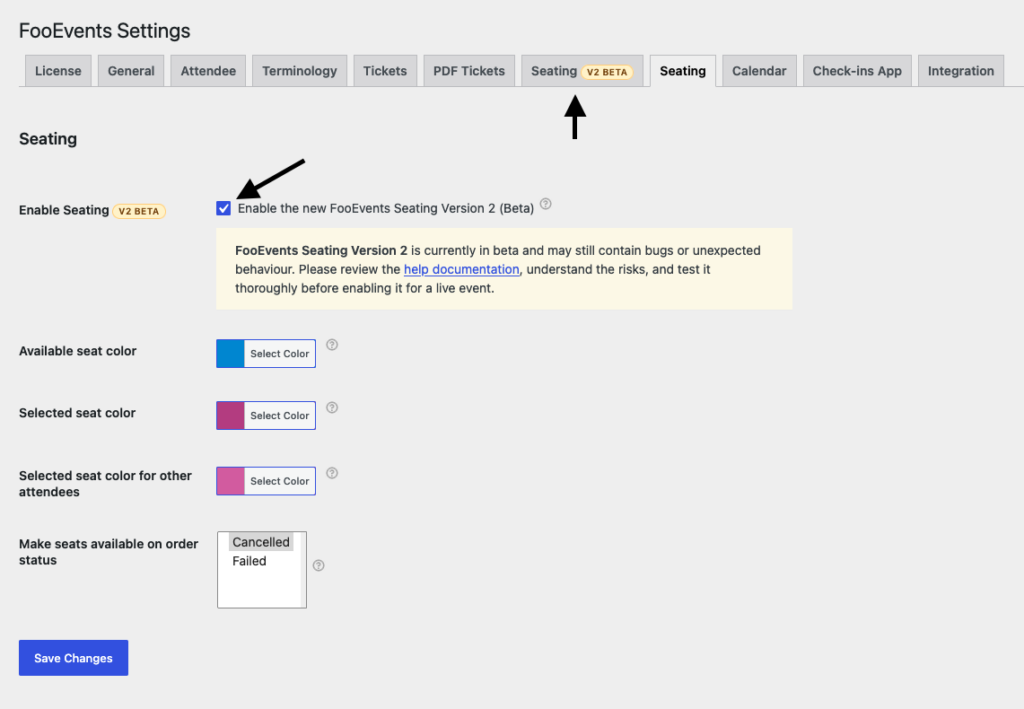
- Aller à FooEvents > Paramètres.
- Ouvrir le Sièges tabulation.
- Activer Activer les sièges (Enable the new FooEvents Seating Version 2 (Beta)).
- Économiser vos paramètres.
Une fois cette option activée, vous verrez apparaître une nouvelle fenêtre Sièges settings tab marked V2 Beta. FooEvents also creates a published Sample Seating Chart the first time Version 2 is enabled, provided that sample chart does not already exist.
Quelques points importants à connaître :
- The new seating system is currently optional while it is in beta, and is disabled by default.
- Le fait de l'activer pas modifie automatiquement les produits de sièges existants.
Étape 2 : Configurer les paramètres globaux des places
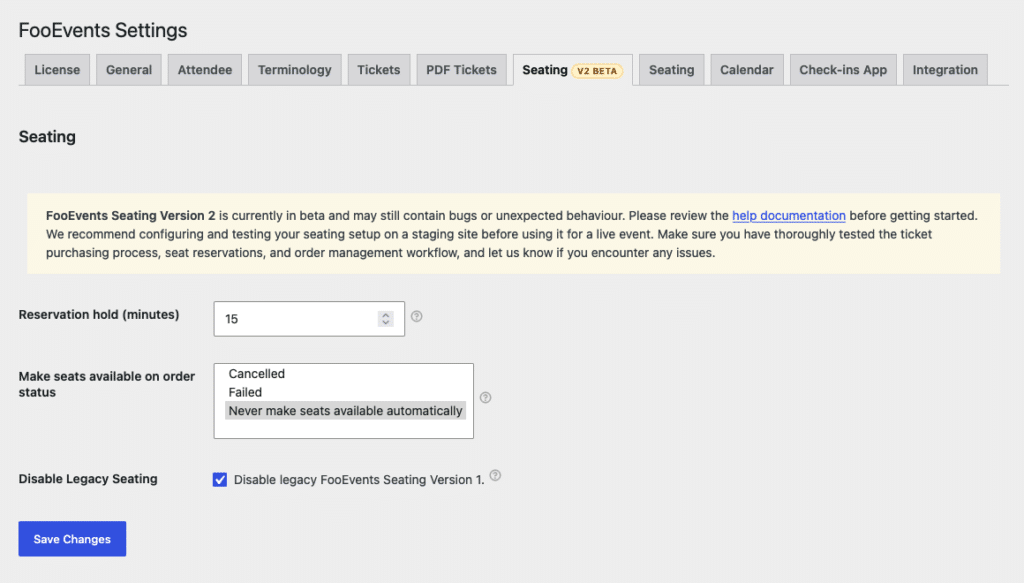
Aller à FooEvents > Paramètres > Seating (V2 Beta) et examinez les options disponibles.
Attente de réservation (minutes)
This controls how long selected seats remain reserved in the cart before they are released. The default is 15 minutes. A shorter hold time can help with faster seat turnover during busy sales periods, while a longer hold time gives customers more time to complete checkout. The cart displays the approximate reservation time remaining for each selection.
Mettre les sièges à disposition en fonction de l'état de la commande
This controls when booked seats should be released automatically after an order status changes. The default and recommended option is Never make seats available automatically, which lets you release seats manually. You can opt to release seats when an order becomes Annulé ou Échec, but use these options with care. In particular, do not use Échec if customers can return and pay failed orders later, as the released seats could be booked by somebody else.
Désactiver les sièges de l'héritage
Cela permet de désactiver l'ancien système de sièges V1 et de masquer l'ancien système de sièges V1 et de masquer l'ancien système de sièges V1 et le système de sièges V1. Sièges le type d'événement. N'activez cette option que lorsque vous êtes sûr de ne plus avoir besoin de l'ancienne configuration des places.
Étape 3 : Planifier la migration
If you still have active events using legacy seating, it is best to leave legacy seating enabled until those events have been fully moved over.
It is not possible to convert an existing event with live seating sales from legacy seating to the new seating system. We recommend using the new seating only for events where ticket sales have not yet started, and gradually phasing out legacy seating usage.
Once you have finished migrating, you can enable Désactiver les sièges de l'héritage afin de garder les choses plus propres et de réduire la confusion pour votre équipe.
Création de modèles de plans de table
Templates are the foundation of the new seating system.
Instead of rebuilding the same layout for every event, you can create one chart and reuse it wherever needed, including bookable events. This saves time and helps keep your venue layout consistent across performances, dates, and products.
Où gérer les modèles
Aller à FooEvents > Tableaux des sièges. Templates are saved as Seating Charts.
Comment créer un modèle
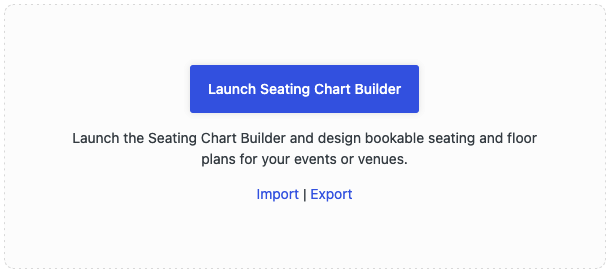
- Aller à FooEvents > Tableaux des sièges.
- Cliquez sur Ajouter un nouveau plan de table.
- Cliquez sur Lancement d'un plan de table.
- Créez votre mise en page, puis enregistrez-la ou publiez-la.
Ce que vous pouvez ajouter dans le constructeur
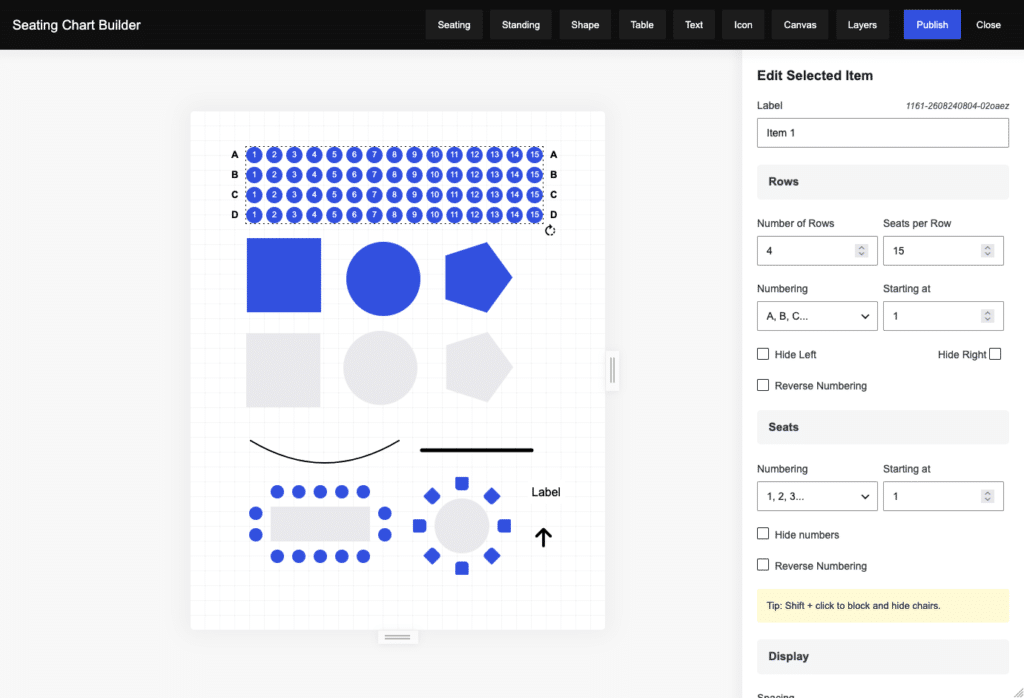
Le constructeur de plans de salle prend en charge une série d'éléments de mise en page, notamment
- Sièges sections with configurable rows, seats, numbering, chair styles, spacing, colors, and curved-row controls.
- Debout sections with a capacity and a rectangle, circle, or polygon shape.
- Tableau layouts with square or circular tables, configurable chair counts, and different chair styles.
- Formes such as squares, circles, polygons, and straight or curved lines for structure and visual guidance.
- Texte des étiquettes pour faciliter l'orientation et la désignation des sections.
- Icônes pour les entrées, les sorties, les points d'accès, les toilettes, etc.
- Contrôles du canevas for adjusting selection colors, the background, workspace dimensions, and zoom.
- Layers for finding chart elements and controlling their front-to-back order.
- Importation / Exportation Outils JSON pour les sauvegardes ou le déplacement de graphiques entre environnements.
Creating curved seating rows
Seating sections can be curved to follow stages, fields, arenas, and other venue shapes.
- Ajouter un nouveau Sièges section, or select an existing seating section.
- Sous Affichage, adjust the Curve slider. Positive and negative values bend the rows in opposite directions, while a value of zero keeps them straight.
- Choisir un Curve Anchor: Center creates a symmetrical curve, Left keeps the left end anchored, and Right keeps the right end anchored.
The curve is preserved when the chart is saved and is used in the builder, product seating manager, and customer-facing seating chart.
Creating straight and curved lines
Lines are useful for stages, aisles, barriers, boundaries, and other floor-plan details.
- Choose Shape, then select Line.
- Set the line width, color, and Curve. A value of zero creates a straight line; positive and negative values curve it in opposite directions.
- Select the line and drag either endpoint to change its length and direction. Hold Déplacement while dragging an endpoint to constrain it horizontally or vertically.
Selecting and moving builder items
- Click an item to select it and open its editing controls.
- Hold Déplacement and click items to add or remove them from a multi-item selection.
- Hold Déplacement and drag from an empty part of the canvas to select multiple items with a selection box.
- Drag any selected item to move the entire selected group together.
- Use the arrow keys to move selected items by 1 pixel, or Shift + Arrow key to move them by 10 pixels.
- Utilisation Cmd/Ctrl + D to duplicate the primary selected item, Backspace/Delete to delete it, and Esc to close the editing panel and clear the selection.
When multiple items are selected, the editing sidebar and duplicate/delete actions apply to the primary selected item, while dragging and keyboard movement apply to the full selection.
Layers and canvas controls
Ouvrir Layers to see every element in the chart. Select a layer to edit its item, or drag layers to change their front-to-back order. When the layer’s drag handle is focused, use the up and down arrow keys to reorder it. You can also use Bring to Front et Send to Back from an item’s editing controls.
Ouvrir Toile to set the customer selection colors, canvas background color, width, height, and zoom. You can also drag the handles on the right and bottom edges of the canvas to resize it, or focus a resize handle and use the arrow keys to resize in 10-pixel steps. Dragging an empty area inside the canvas moves all chart elements together.
Comprendre les états de siège
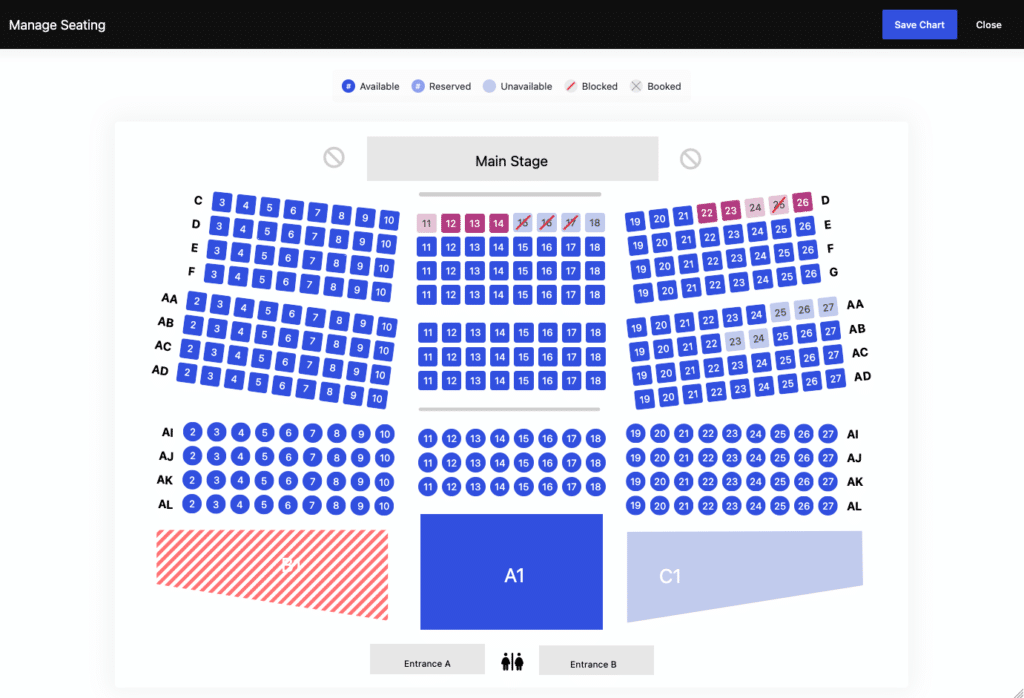
Au fur et à mesure que vous travaillez avec des modèles et des sièges d'événements en direct, vous verrez différents états des sièges :
- Disponible : Le siège peut être sélectionné et acheté.
- Indisponible : Le siège est visible, mais les clients ne peuvent pas le sélectionner.
- Bloqué : Le siège a été intentionnellement bloqué par un administrateur.
- Réservé : La place est temporairement conservée dans le panier d'un client.
- Réservé : The seat has been allocated to an order and ticket.
Chaises cachées et pré-bloquées
At template level, select a seating or table section and use Maj + clic on a chair to cycle it from available to hidden, hidden to blocked, and blocked back to available. You can also hold Déplacement and drag across multiple chairs in the selected section to cycle their states in bulk.
This is useful for things like:
- sièges avec vue obstruée,
- l'appareil photo ou les domaines techniques,
- les sièges définitivement indisponibles,
- les exclusions spécifiques aux lieux.
Les chaises cachées n'apparaissent pas comme des sièges sélectionnables, et les chaises pré-bloquées restent protégées lorsque le tableau est utilisé sur des produits.
Remarque sur la modification des modèles en direct
If a template is already being used by active events, structural changes should be made carefully.
The system keeps a Historique des changements et vous avertit que la modification d'éléments tels que les numéros de section, les noms de rangée ou les numéros de siège peut avoir une incidence sur les billets vendus.
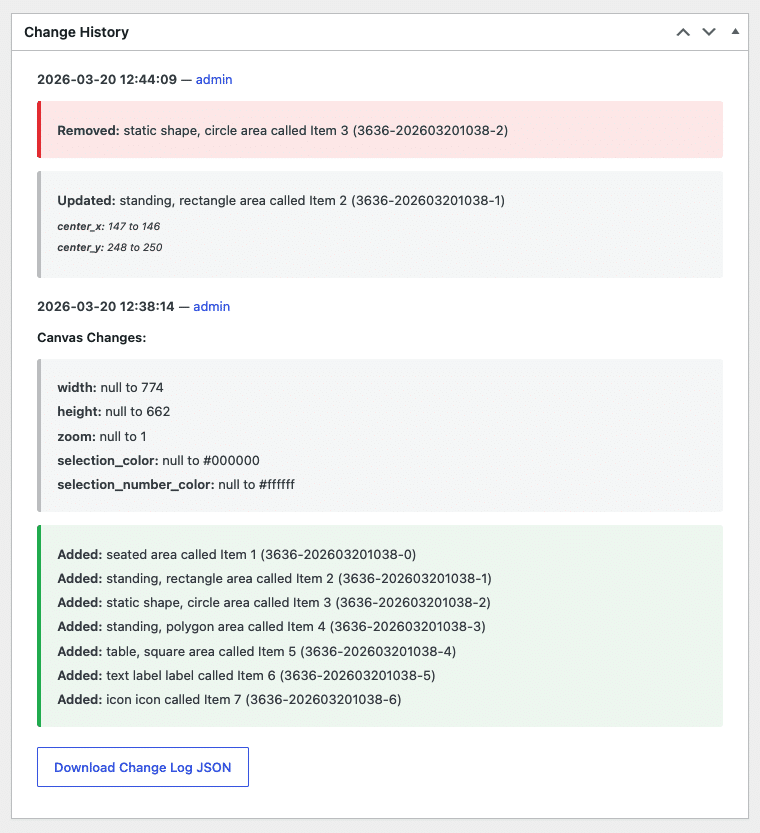
La meilleure pratique consiste à :
- éviter les modifications structurelles majeures sur les modèles vivants,
- tester les modèles mis à jour avant de les utiliser pour des événements actifs.
Importation et exportation de graphiques (JSON)
Utilisez les outils JSON pour sauvegarder un graphique ou le déplacer d'un environnement à l'autre, par exemple de la phase d'essai à la phase de production.
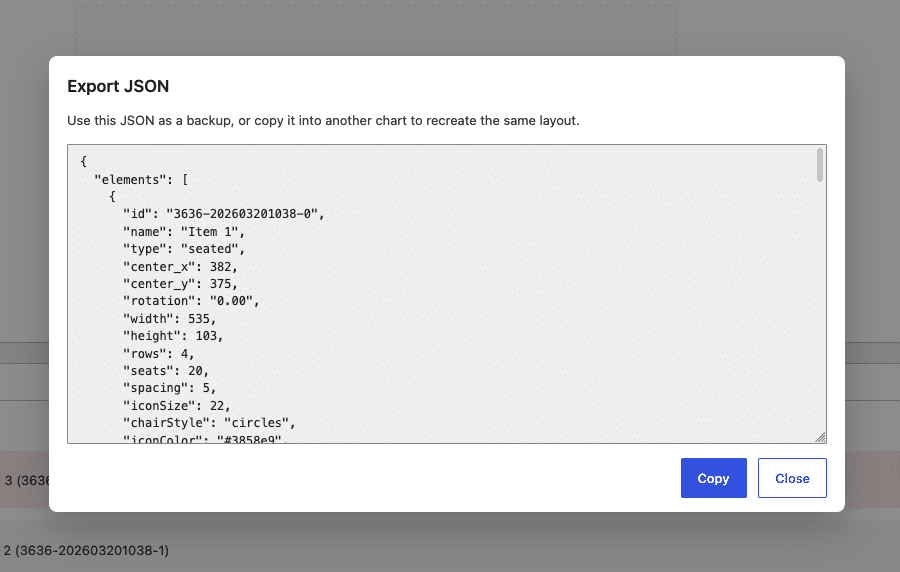
Comment cela fonctionne-t-il ?
- Open the source seating chart’s edit screen.
- Cliquez sur Export below the builder launcher, then copy the full JSON content.
- Créer un nouveau tableau des places assises.
- On the new chart’s edit screen, click Importation, paste the JSON, and confirm the import. Review the imported layout in the builder, then publish or save the chart.
Important
Importing JSON replaces the chart currently loaded in the builder and recreates its visual layout, including sections, rows, seats, shapes, labels, canvas settings, layers, and structure. Existing valid section IDs are preserved where possible, while missing or duplicate IDs are regenerated when the chart is saved. If you import a layout into a new chart, treat that chart as a separate template and test it before using it on active products.
Configuration des plans de salle dans les produits
Le nouveau siège FooEvents fonctionne avec :
- Unique
- Jours séquentiels
- Jours spécifiques
- Réservable
Il ne fonctionne pas avec l'ancien système Sièges event type from V1.
If your product is currently using the old Sièges et que vous souhaitez utiliser le nouveau système de places assises, modifiez le type d'événement pour qu'il devienne Unique ou une autre option prise en charge, puis configurez les paramètres du tableau. Les sélections de places existantes de l'ancien système ne seront pas transférées. Veillez donc à n'effectuer cette opération que pour les événements pour lesquels les places n'ont pas encore été réservées.
Flux de travail pour la configuration des produits
- Ouvrez le produit WooCommerce.
- En Détails de l'événement, Choisissez un type d'événement pris en charge.
- En Réglages des sièges, select your Tableau des sièges.
- Économiser le produit afin que les options d'assise puissent être appliquées.
- Rouvrez les paramètres du produit pour configurer d'autres options graphiques.
- Utiliser le Gérer les sièges pour visualiser et ajuster la disponibilité des places en direct pour ce produit.
Ce que font les réglages des sièges
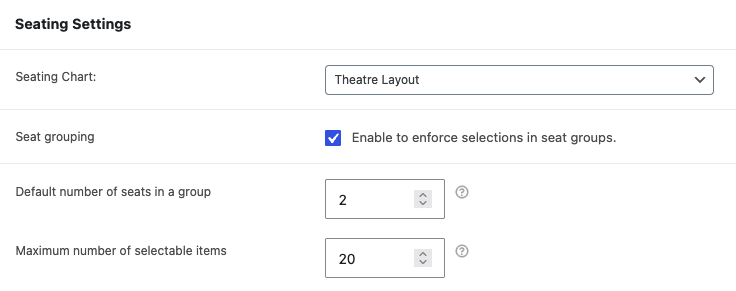
Ces paramètres vous permettent de contrôler la façon dont les clients interagissent avec le graphique pour un événement spécifique.
Groupement de sièges
Enable this to enforce grouped seat selection. Customers choose how many tickets they need, and FooEvents attempts to select an adjacent group that includes the seat they clicked. For seating rows, the selection logic also avoids leaving unusable gaps at row edges where possible. Square-table selections prioritize nearby chairs.
Nombre de sièges par défaut dans un groupe
Sets the ticket quantity shown when the seat selector opens. Customers can adjust this quantity in the selector when grouping is enabled.
Nombre maximum d'éléments sélectionnables
Limits how many seats or standing places can be selected in one booking flow.
These options let you fine-tune the customer experience without changing the actual seating template.
Grouped, single, and flexible selection
- Seat grouping disabled: Customers can select any available seats individually, up to the configured maximum.
- Seat grouping enabled with a quantity greater than one: Clicking a seat selects an adjacent group of the requested size where a suitable group is available.
- Seat grouping enabled with a quantity of one: Single Selection Mode lets customers select an isolated seat or build a contiguous group by adding adjacent seats one at a time. After a standard row seat is selected, non-adjacent standard seats are temporarily unavailable, while genuine isolated seats remain selectable.
Single Selection Mode is useful when you want to allow single-ticket purchases without encouraging customers to leave unnecessary one-seat gaps. When isolated seats are detected, the selector displays guidance explaining this flexible selection behaviour.
Gestion des places assises pour les événements réservables
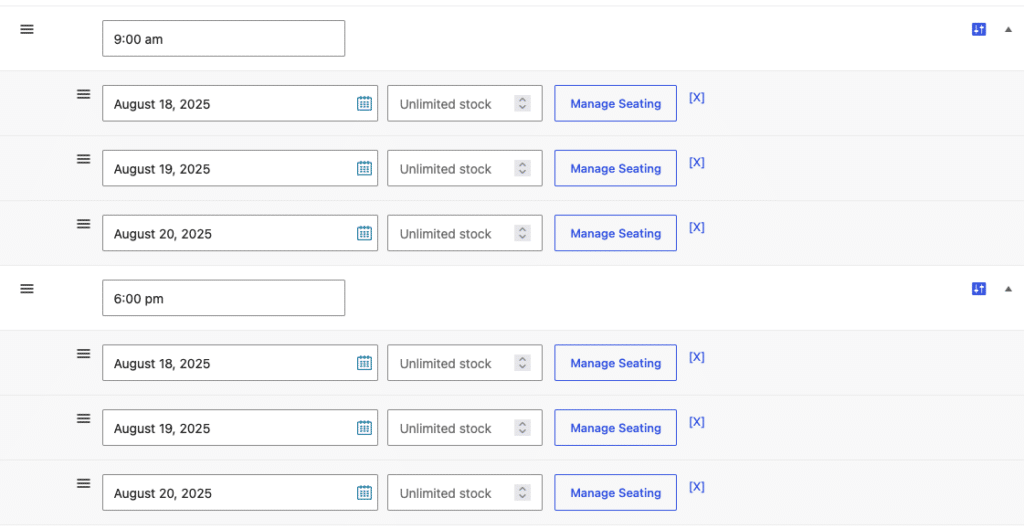
For events using FooEvents Réservations, seating is managed separately for each booking date and time slot combination. This means you can reuse the same seating chart across many dates, while keeping availability and bookings separate for each performance or timeslot.
For example, a theatre could use the same seating layout every night, while still tracking sold and available seats independently for each show.
This gives your team better control and keeps seating accurate across recurring bookings.
WooCommerce Stock Management
When using a seating chart, ticket availability is managed by the availability of seats on the seating chart rather than by WooCommerce stock quantities. Seats that are reserved or booked are automatically marked as unavailable on the seating chart.
As such, it is not necessary to set stock quantities for simple or variable products. The products only need to be set to In stock. Similarly, when using FooEvents Réservations, booking slot availability can be left at the default unlimited amount.
For products that use seating, we recommend configuring WooCommerce stock as follows:
- Edit the WooCommerce product and open the Inventaire des paramètres.
- Disable Gestion des stocks ou Gérer les stocks.
- Régler le Stock status à In stock.
- If you are using a variable product, apply these settings to every variation used by the seating chart.
- If you are using a bookable product, leave the booking slot stock quantity blank or set to unlimited.
Setting the product to In stock ensures that customers can access the product and open the seating chart to select their seats. It does not mean that every seat is available. The seating chart remains the authoritative source for seat availability.
Do not enter the total number of seats as the WooCommerce stock quantity. Doing so creates a second, independent availability limit. This could result in WooCommerce preventing a purchase even when the selected seats are still available on the seating chart.
Variation-level stock settings can still prevent valid seat purchases, so make sure stock management is disabled for every variation linked to the seating chart.
The standard WooCommerce In stock message is not normally displayed on shop or product pages when stock quantities are not being managed. However, this can vary depending on your theme or other plugins. If your theme displays an In stock message, we recommend disabling the messaging, as it could incorrectly suggest that seats are still available when the event is fully booked.
Sièges et migration de l'héritage
L'héritage Sièges event type is the older V1 seating workflow. The new seating chart settings do not apply to those products.
Existing seating selections from the old seating will not carry over to the new charts, so be sure to only do this for events where seats have not yet been booked.
To move a legacy product to the new system:
- Modifier le type d'événement de Sièges à Unique ou d'un autre type pris en charge.
- Attribuer un graphique dans Réglages des sièges.
- Configurer les paramètres d'interaction du graphique.
- Sauvegardez le produit et testez la configuration du début à la fin.
Une fois que tous vos anciens produits de sièges ont été migrés, vous pouvez activer les fonctions suivantes Désactiver les sièges de l'héritage pour simplifier l'administration.
Cartographie des sections de sièges en fonction des variations
If you are using variable products, you can map specific chart sections to individual variations. This is useful when different seating areas need different pricing.
Open the variation settings and press the Plan des places assises bouton :
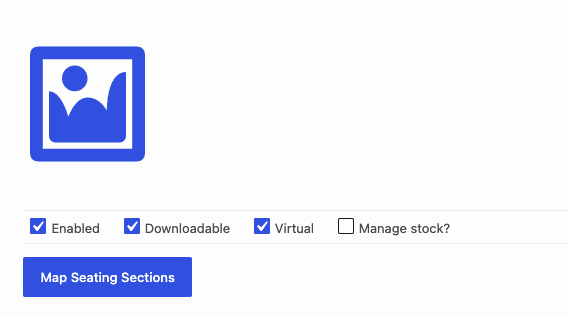
Sélectionnez les sections qui doivent correspondre à cette variation :
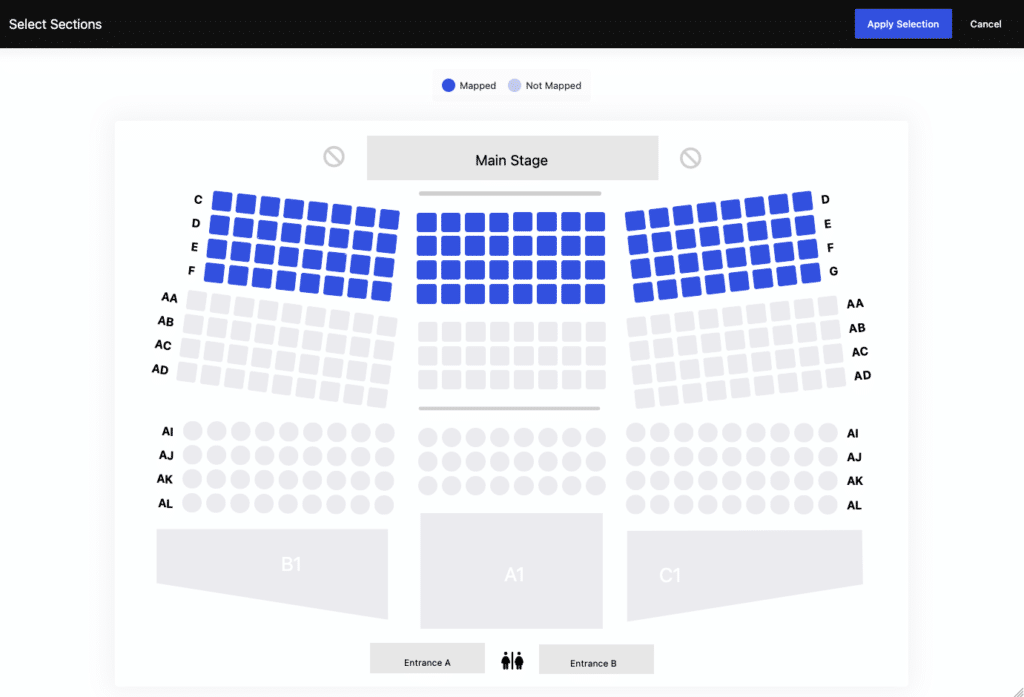
When those areas are selected by customers, the mapped variation is applied to the selected item in the cart.
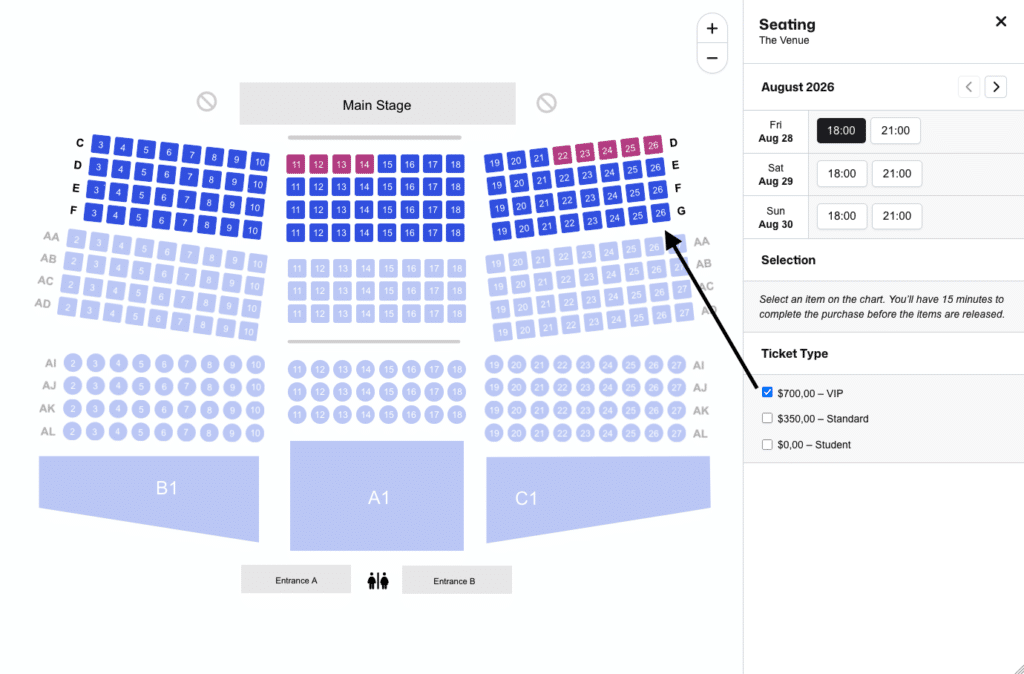
Par exemple :
- Les sièges de balcon peuvent être liés à une variante.
- Les sièges d'étage peuvent être reliés les uns aux autres.
Flux de travail
- Configurez vos variations de produits dans WooCommerce comme d'habitude.
- Ouvrez les paramètres de variation et utilisez Plan des places assises sur chaque variation.
- Sélectionnez les sections du graphique auxquelles la variation doit s'appliquer.
- Sauvegarder le produit.
Quelques points à garder à l'esprit :
- Les sections qui ne sont pas cartographiées ne seront pas disponibles dans cette variante.
- Les clients ne peuvent sélectionner que des sièges appartenant à la variante choisie.
Mobile experience
On mobile, the seating interface guides customers through the booking flow in a more step-by-step way.
- If seat grouping is enabled, customers are first asked how many tickets they want and can adjust the quantity from the selection panel.
- If the ticket quantity is set to one, Single Selection Mode allows isolated seats or lets customers build a contiguous selection one adjacent seat at a time.
- For bookable events, customers then choose the booking date and time slot before selecting seats.
- After selecting chairs or standing areas, customers can use the mobile menu to review tickets, remove selections, or change the booking date where applicable.
- Once they are happy with their selections, they continue using Réserver.
Expérience de la page produit pour les clients
When a seating chart is enabled on a purchasable product, the standard WooCommerce add-to-cart flow is replaced with a Acheter des billets button. This replacement supports both classic WooCommerce single-product templates and current block-based add-to-cart templates.
When customers click Acheter des billets, une interface de siège en plein écran s'ouvre.
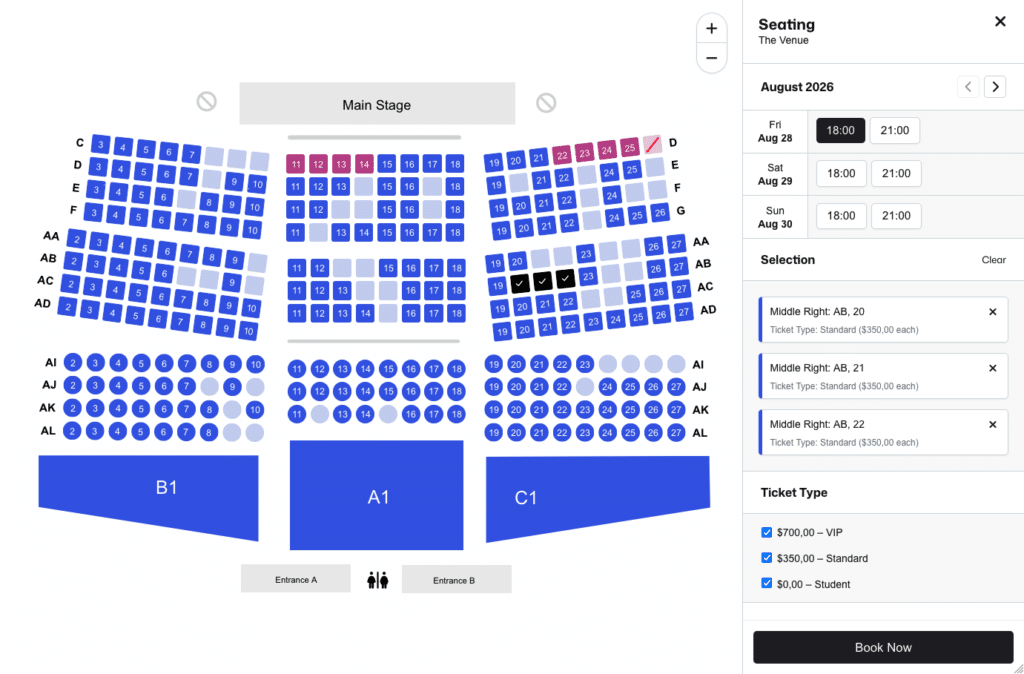
Ici, ils peuvent le faire :
- voir les détails de l'événement,
- choisir une date ou un créneau de réservation si nécessaire (réservations FooEvents),
- choose mapped variation or ticket options where applicable,
- choisir des sièges ou des places debout,
- revoir leurs sélections dans un résumé en direct,
- continuer à utiliser Réserver.
Les clients bénéficient ainsi d'une expérience beaucoup plus claire, car ils peuvent voir exactement ce qui est disponible avant de passer à la caisse.
Paiement, réservations et cycle de vie des sièges
Flux de réservations
Lorsqu'un client clique sur Réserver:
- FooEvents vérifie que les sièges sélectionnés sont toujours disponibles.
- Les sièges sont temporairement réservés.
- Ils sont ajoutés au panier en tant que sélections individuelles.
- The customer is redirected to the cart.
Comportement du panier
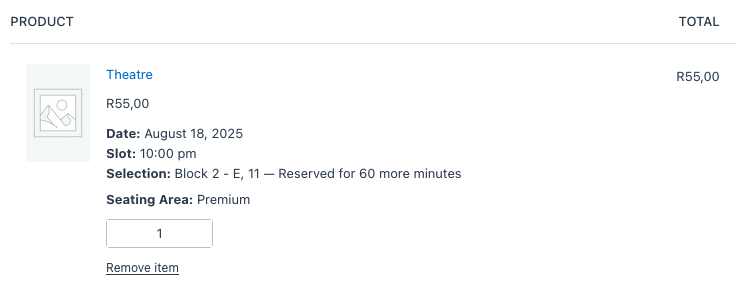
- Les clients ne peuvent pas modifier librement la quantité de sièges sélectionnés dans le panier.
- Le retrait d'un siège du panier libère la réservation, à condition qu'elle soit toujours liée à cette session.
- Reservation time limits are controlled by your global hold setting, and the cart shows the approximate number of minutes remaining.
Comportement à la caisse
Before checkout is completed, reservations are checked again.
If a reservation has expired or a seat is no longer valid, checkout will be stopped and the customer will need to reselect.
Once checkout successfully creates the order and ticket data, the seat moves from Réservé à Réservé.
Reservation Checks
FooEvents Seating checks each selected seat before checkout can continue. These checks help prevent the same seat from being booked more than once.
The system verifies that:
- The seat reservation still exists.
- The seat is still reserved and has not expired.
- The reservation belongs to the current cart/session.
- The seat has not already been booked by another order.
- The seat has not been blocked or marked unavailable.
- The reserved seat is still within the configured reservation hold time.
- Seating products are added as individual seats, not grouped quantities.
- The reserved seat can be safely converted into a booked seat when the order is placed.
- Tickets are only generated after the seat has been successfully booked for the order.
If any of these checks fail, checkout will be stopped and the customer will need to remove the expired or unavailable seat from their cart and select a seat again.
Règles de déverrouillage automatique des sièges
Les Mettre les sièges à disposition en fonction de l'état de la commande setting controls if and when seats are released automatically after order status changes.
You can choose to release seats on:
- Annulé
- Échec
The default and recommended option is Never make seats available automatically, which leaves releases under manual control. Enable Annulé ou Échec only when those statuses reliably mean that the seats can be sold again in your order workflow. Use Échec with particular caution: if a customer can pay a failed order later, its released seats may already have been booked by somebody else.
Gestion des billets et des places en direct
Gestion des places au niveau du produit
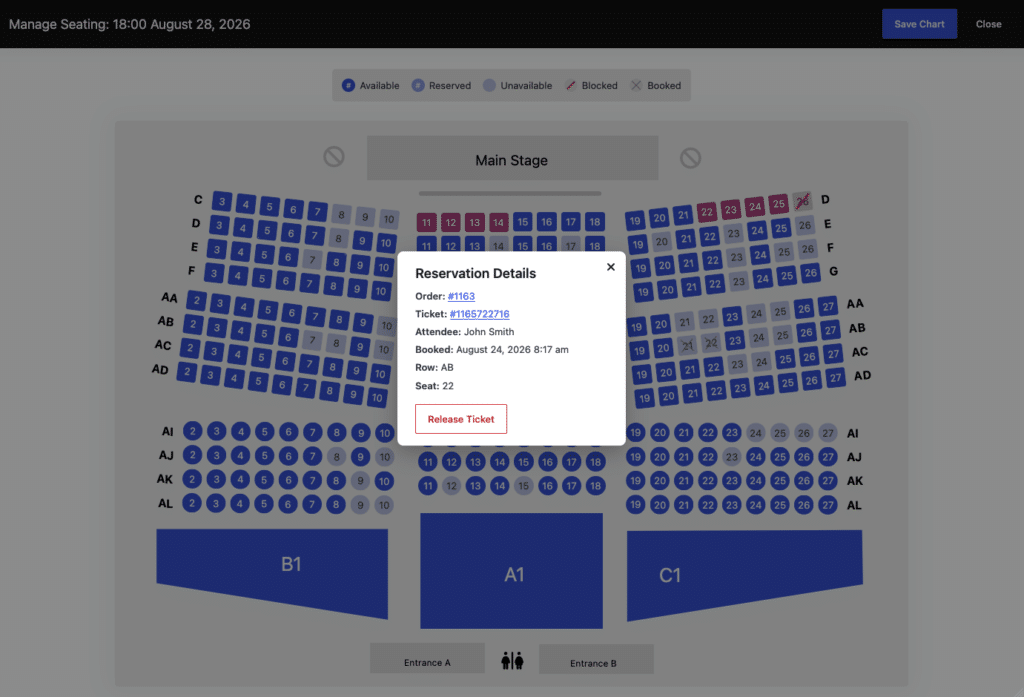
A partir du produit Visualisation des sièges / Gestion des sièges, les administrateurs peuvent le faire :
- mettre à jour la disponibilité des sièges en direct,
- voir les places réservées,
- ouvrir les détails de la réservation pour les sièges sélectionnés,
- libérer des places réservées là où c'est nécessaire,
- gérer les réservations de places debout.
Cette fonction est particulièrement utile pour les équipes d'assistance ou le personnel des salles de spectacle qui doivent traiter rapidement les problèmes liés aux sièges.
Gestion des places au niveau des billets
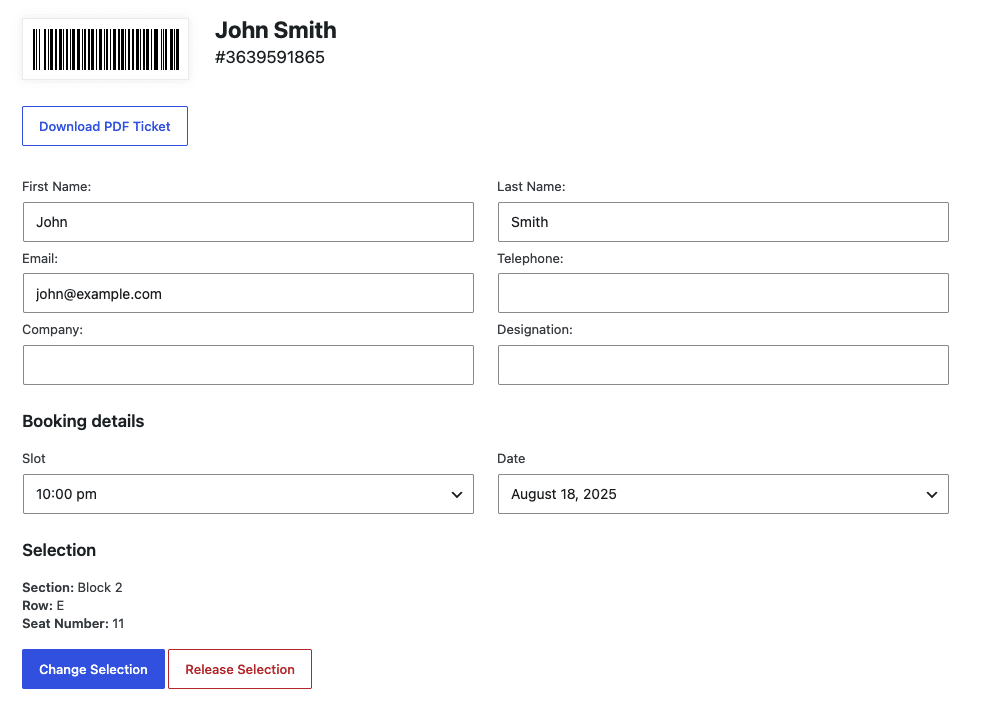
Dans l'écran d'édition du ticket, les administrateurs peuvent :
- visualiser le siège ou la zone en cours,
- utiliser Modifier la sélection pour le déplacer,
- utiliser Sélection de la version pour l'enlever.
Si un nouveau siège n'est pas disponible, le siège d'origine reste inchangé, de sorte qu'aucune donnée n'est perdue.
Annulations et remboursements
Il est important de le comprendre :
- L'annulation ou la suppression d'un billet pas libère automatiquement le siège.
- Le remboursement d'un poste de commande pas libère automatiquement le siège.
Si vous souhaitez qu'une place redevienne disponible, elle doit être libérée manuellement à l'aide des outils de gestion des places, ou gérée par les règles de libération de l'état de la commande que vous avez choisies.
Plan de déploiement recommandé
Une manière sûre d'introduire le nouveau système de sièges est de le faire par étapes :
- Activez-le d'abord sur un site d'essai.
- Build and test templates for real venue layouts, including curved rows or lines, hidden seats, and pre-blocked seats where applicable.
- Appliquez d'abord les graphiques à un petit nombre de produits.
- Test key flows, including single-day, sequential days, specific days, bookable, and variation-based seating.
- Test selection with grouping disabled, grouped quantities greater than one, and Single Selection Mode with a quantity of one. Include isolated seats, tables, standing areas, and maximum ticket limits where applicable.
- Test both classic and block-based WooCommerce product templates if your site uses them.
- Test reservation expiry, the cart countdown, conflict handling, order-status releases, and manual seat releases.
- Assurez-vous que votre équipe d'assistance ou d'administration sait comment gérer les sièges en direct.
- Migrez le reste de vos produits par étapes.
- Ne désactivez les anciennes places que lorsque vous aurez terminé la V1.
Currently not supported
The following functionality is not yet supported in the FooEvents Seating Version 2 beta:
- FooEvents Check-ins app: Seating Version 2 information is not currently displayed in the publicly available FooEvents Check-ins app. Support will be added before launch.
- FooEvents Point de vente : Support for FooEvents Seating Version 2 is under development and will be added in a future release.
 English
  German
  Dutch
Dutch  Spanish
  Italian
  Portuguese
  French
  Polish
  Czech
Czech  Greek
Greek