

If you need more control over when FooEvents generates and sends tickets, you can configure an approval workflow using a custom WooCommerce order status. This allows administrators to review orders first and then manually release tickets when ready.
Scenarios where this can be useful #
- Members-only or restricted events: You need to confirm that the customer is eligible before issuing tickets.
- Invite-only or private events: Orders need to be reviewed before access is granted.
- Fraud or verification checks: You want to inspect orders before tickets are generated.
- Duplicate gateway callbacks: A payment gateway may return multiple callbacks or duplicate confirmations, which can lead to duplicate processing.
- High server load: Your server may be under strain and immediate ticket generation could increase the load.
- PDF generation bottlenecks: PDF ticket creation may be resource-intensive, especially during busy periods.
- Email delivery issues: You may want to delay ticket sending while mail delivery problems are being resolved.
- Controlled ticket release: You want to release tickets in batches instead of generating them all immediately.
How this helps manage these scenarios #
Instead of generating tickets as soon as an order reaches the normal trigger status, FooEvents can be configured to wait for a custom approval status.
This gives administrators time to review the order before tickets are generated and sent.
In technical issue scenarios, this allows orders to continue being placed while ticket generation is delayed until the system is stable. Administrators can then approve orders manually, one at a time or in small batches, which reduces load and gives them an opportunity to identify duplicate or problematic orders before tickets are released.
This approach is especially useful when immediate automated ticket generation could create additional strain or make an existing issue worse.
It is also a good idea to add a short note to your order confirmation or thank you message so customers know that their order has been received and that tickets will be sent once the order has been reviewed and approved.
How to set it up #
Step 1: Create a custom order status #
Install a WooCommerce custom order status plugin and create a new order status such as Approved.
You can use any label that matches your workflow.
Step 2: Configure FooEvents to use that status #
Aller à FooEvents > Settings > General.
Find the Envoi sur l'état de la commande setting and select the custom order status you created.
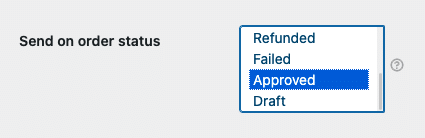
This tells FooEvents to only generate and send tickets when an order reaches that status.
Step 3: Review and approve orders manually #
When a customer places an order, the order will be created as normal, but tickets will not be generated immediately.

Once an administrator has reviewed the order, they can change the order status to the custom approval status.
FooEvents will then generate and send the tickets.
Recommended use during technical issues #
If you are using this workflow to manage technical issues, allow orders to continue as normal and hold back ticket generation until the issue is resolved or under control.
Once stable, approve valid orders manually in a controlled sequence or in batches. This helps reduce server pressure and lowers the risk of duplicate or unwanted ticket generation.