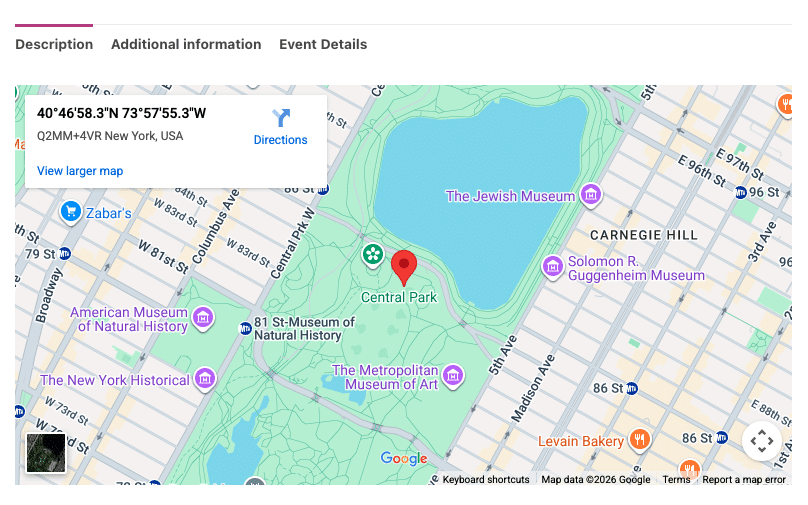
FooEvents vous permet d'afficher des cartes sur vos événements/produits en utilisant Google Maps. Vous avez le choix entre deux méthodes d'intégration des cartes.
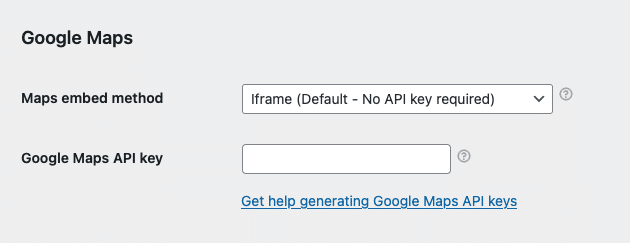
- Naviguez jusqu'à FooEvents > Paramètres > Intégration > Google Maps
- Sélectionner un Méthode d'intégration des cartes:
- Iframe - Gratuit et ne nécessite pas de clé API Google Maps - recommandé
- JavaScript - Nécessite une clé API Google Maps payante - option héritée du passé ; à éviter
Méthode 1 : Iframe - recommandée
La méthode iframe est simple, gratuite et facile à mettre en place. Il suffit de sélectionner la méthode iframe et d'entrer les coordonnées GPS de votre site lors de la modification de vos événements (voir ci-dessous).
Méthode 2 : JavaScript - option payante ; à éviter
La méthode JavaScript est une ancienne option disponible avant l'introduction de la méthode iframe. Elle nécessite la mise en place d'une clé API Google Maps payante. Elle est également plus sujette aux conflits JavaScript avec les thèmes et les plugins tiers. C'est pourquoi nous vous recommandons d'utiliser l'option iframe, qui est plus robuste et offre des fonctionnalités similaires.
Si vous décidez d'utiliser la méthode JavaScript, vous devrez générer une clé API Google Maps. Veuillez suivre les instructions suivantes :
- Vous pouvez générer un Clé API Google Maps en suivant ces instructions : https://developers.google.com/maps/documentation/javascript/get-api-key
- Une fois que vous avez généré un Clé API Google Maps, l'inscrire ici : FooEvents > Paramètres > Intégration > Clé API Google Maps
Obtenir les coordonnées GPS correctes :
Ce qui suit s'applique aux méthodes d'intégration iframe et JavaScript.
Aller à maps.google.com et recherchez votre lieu ou votre adresse. Une fois que vous l'avez trouvé, faites un clic droit sur le lieu, cliquez sur les coordonnées et copiez-les dans votre presse-papiers. Collez-les dans le champ “Coordonnées de la carte Google"lors de l'édition de votre événement dans votre Zone d'administration de WordPress.
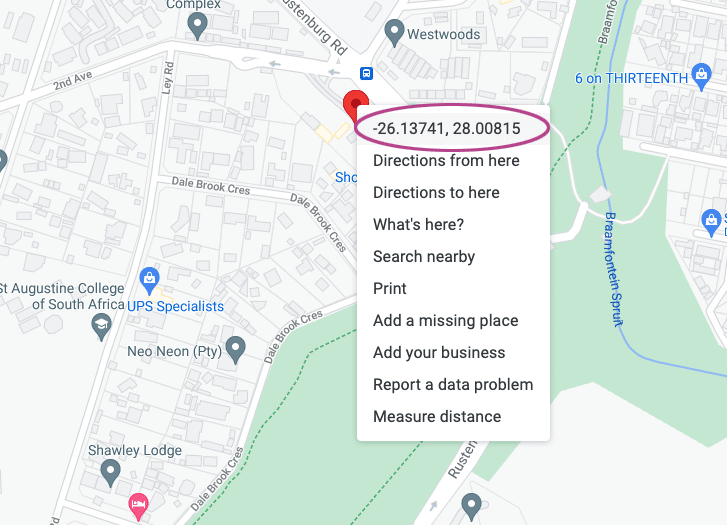
Le format des coordonnées de Google Maps doit être le suivant : -26.13741, 28.00815
Si nécessaire, vous pouvez convertir ce format à l'aide de l'outil suivant :
http://www.gps-coordinates.net/gps-coordinates-converter
Setting the correct GPS coordinates
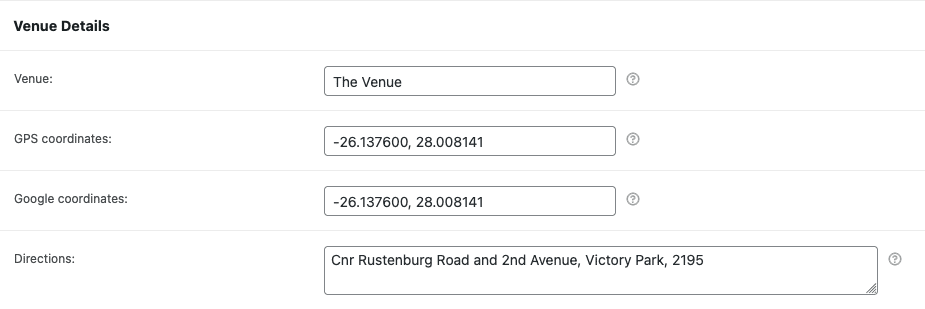
- Naviguez jusqu'à un produit pour lequel les événements sont activés.
- Faites défiler vers le bas jusqu'à la rubrique Données sur le produit onglets.
- Ouvrir le Paramètres de l'événement et faites défiler jusqu'à l'onglet Détails du lieu section.
- Saisir le Coordonnées GPS dans le Coordonnées de la carte Google domaine.
Viewing the Google Map
Naviguez jusqu'au produit sur la page d'accueil de votre site et faites défiler jusqu'aux onglets du produit :