
FooEmail (currently in beta) is a free WordPress plugin for logging emails sent from your site and improving email deliverability using SMTP and Brevo. It helps ensure that mission-critical emails such as FooEvents tickets, WooCommerce orders, contact form submissions, and password resets reach your customers’ inboxes without being flagged as spam or blocked by hosting providers.
Download and install the free FooEmail plugin on your WordPress site.
Key Features
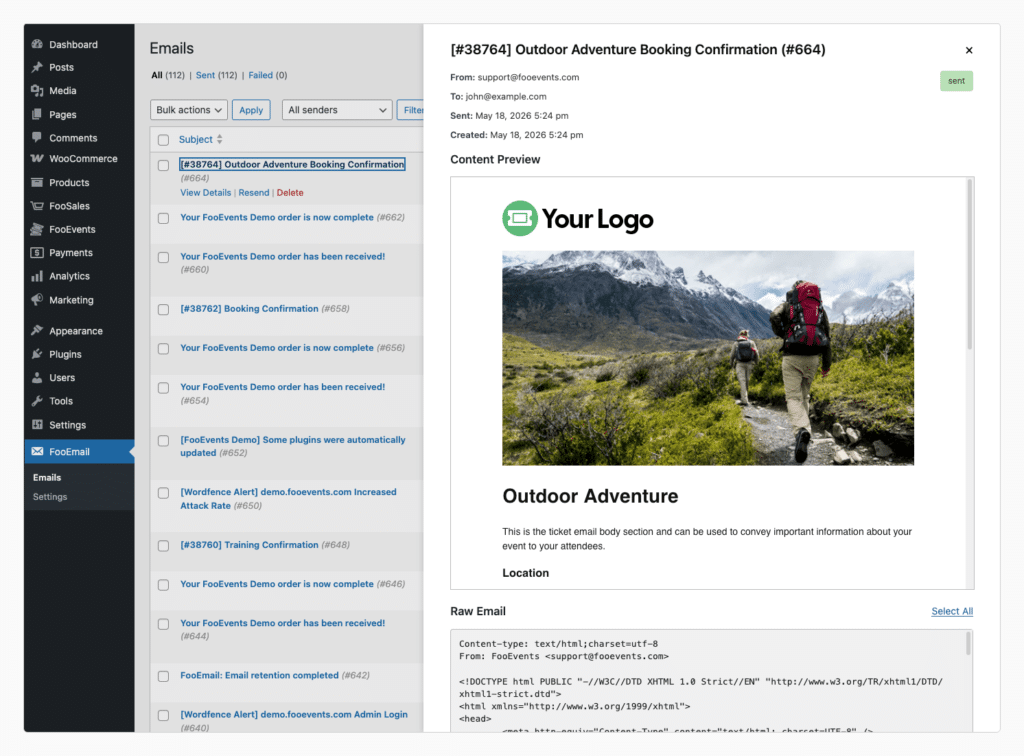
Email Logging
Every email sent from your WordPress site is captured in a detailed log that allows you to monitor delivery status and troubleshoot errors in real-time.
Reliable Email Sending (SMTP & Brevo)
By default, WordPress uses the wp_mail function, which relies on your web server’s internal mailer. These mailers are often restricted or poorly configured, leading to high failure rates. FooEmail allows you to bypass these limitations by routing emails through professional Email Service Providers (ESPs) like Brevo or a custom SMTP server.
Automated Data Management
Maintain a lean database and stay compliant with privacy regulations with automated cleanup tools.
Setup Steps
Step 1: Install and Activate
Once activated, FooEmail will immediately begin capturing logs for all outgoing emails sent from your WordPress site.
Note: The log email content option is not enabled by default to protect your privacy. However, email content is not stored and resends are unavailable while this is disabled. You can enable this on FooEmail > Settings.
Step 2: Configure your Sender
- Navigate to FooEmail > Settings.
- Click the Email Sending tab.
- Choose your service (SMTP or Brevo) and enter the required credentials.
- Check Force From Email to maximize deliverability.
Step 3: Verify with a Test Email
- In the Email Sending tab, click the Test Sending sub-tab.
- Enter your email address and click Send Test Email.
- Check the Emails log page to confirm the status is “Sent.”
Email logging and delivery are separate: An email can be logged by FooEmail but still fail to send if the SMTP/API provider rejects it. More information can be viewed on the FooEmail > Emails page.
Settings
General
| Send Notifications | |
| Enable notifications | Check to receive email notifications when the email log exceeds limits. |
| Recipient email | Email address that will receive the email notifications when the email log exceeds limits. |
| Number of logs | Number that will trigger the email notifications. |
| Delete old emails from log | |
| Enable | Check to automatically delete logs older than a certain age or when your log reaches a specific total count. |
| Older than | Age to check when to start automatically deleting logs. |
| Total logs exceeds | Total number of logs to trigger the automatic deletion. |
| Privacy | |
| Log email content | Check to store email body/content for previews and resends. When disabled, email content is not stored and resends are unavailable. |
Email Sending
| Email Sending | |
| Email Sending | Choose which service to use for outgoing email. Options are WordPress Default, SMTP, and Brevo
To ensure your website’s emails actually reach your users’ inboxes, you need to tell FooEmail how to send them. You can choose to connect to your own email server using SMTP or use a dedicated email delivery service like Brevo. |
| SMTP Settings
You can usually obtain these details from your website hosting company (like Bluehost, SiteGround, etc.), your email provider (like Google Workspace or Microsoft 365), or your dedicated Email Service Provider. Search their help docs for “SMTP settings” or reach out to their support team. | |
| SMTP Host | This is the web address of your email server. It usually looks something like smtp.yourdomain.com, smtp.gmail.com, or mail.yourprovider.com. |
| Port | This is the specific “digital door” the server uses to send mail. This number is directly tied to your Encryption Type. Your provider will give you the exact number, but generally:
|
| Encryption | This tells the server how to safely scramble your email data while it travels across the internet. Your email provider will tell you which one to use.
|
| Username | The username you use to log into your email server. In almost all cases, this is simply your full email address (e.g., hello@yourwebsite.com). |
| Password | The password associated with your SMTP Username. Note: If you use Gmail or Microsoft 365, you may need to generate a special “App Password” in your account security settings rather than using your normal login password. |
| From Email | This is the email address that your customers will see in the “From” line when they receive your message in their inbox. To ensure your emails don’t get blocked by spam filters, this should usually be the exact same email address you entered in the SMTP Username field above.
Force From Email (Highly Recommended): WordPress plugins sometimes try to send emails using default addresses like |
| From Name | From Name: This is the friendly, human-readable name that appears next to the email address in your customer’s inbox. Instead of just seeing an email address, they will see a name they recognize. You can set this to your company name (e.g., “FooEvents Support”) or a specific person (e.g., “Jane from FooEvents”). |
Brevo
Brevo (formerly Sendinblue) is a dedicated email delivery service. Using a service like Brevo is often much more reliable than standard SMTP because their servers are strictly optimized for delivering high volumes of website emails.
FooEmail includes a direct integration with Brevo. Unlike SMTP, you do not need to use ports or hostnames; you simply need an “API Key,” which acts as a secure digital handshake between your website and your Brevo account.
How to Get Your Brevo API Key:
- Log in to your Brevo account dashboard.
- In the top-right corner of the screen, click your account name to open the dropdown menu.
- Click SMTP & API.
- Make sure you are on the API Keys tab.
- Click Generate a new API key.
- Give your key a recognizable name so you remember what it is for later, e.g. FooEmail Website.
- Click Generate.
- Brevo will display a long string of letters and numbers. Copy the entire API key.
Important: Keep this key safe. Brevo will only show you the full API key once for security reasons.
Connect FooEmail to Brevo:
- Log in to your WordPress admin dashboard.
- Navigate to the FooEmail Settings page.
- Find the Sender option and select Brevo from the dropdown list.
- A new field labeled Brevo API Key will appear.
- Paste the API key you copied from Brevo into the Brevo API Key field.
- Complete the remaining sender details:
- From Email
- From Name
- Reply-To
- Scroll down and click Save.
Test your connection
Once your settings are saved, it’s recommended to test the connection. Use FooEmail’s built-in email testing tool to send a quick test message to your own email address (Test Sending).
Frequently Asked Questions
Q: When should you use FooEmail?
A: Use FooEmail to keep your website from issues such as missing ticket emails, WooCommerce order emails going to spam, password reset emails not arriving, customers reporting they never received emails, or hosting providers blocking mail.
Q: Does FooEmail replace other SMTP plugins?
A: Yes. FooEmail is designed to be a lightweight, all-in-one solution for WordPress email delivery and logging, specifically optimized for high-volume plugins like FooEvents.
Q: Why do I see “SMTP Error: Data not accepted”?
A: This is a server-side rejection. It usually means your “From” email does not match your SMTP username, or you have hit a sending limit with your provider (e.g., Hostinger).
Q: Can I resend tickets that failed to send?
A: Yes. If you have Log email content enabled in the Privacy settings, you can open any log entry and click Resend to attempt delivery again.
Plugin Privacy & Data Retention
What data does FooEmail collect and store?
When an email is generated by WordPress (via the wp_mail function), FooEmail intercepts the email to process it and records a copy in its internal log. The following information is collected and stored in the database for each email:
- Recipient Information: Email addresses and names for the To, CC, and BCC fields.
- Sender Information: Email addresses and names for the From and Reply-To fields.
- Email Content: The subject line, raw email body (which may contain personal information depending on the context of the email, such as order details or user data), and email headers.
- Attachment Metadata: Information about any files attached to the email.
- Technical Data: The IP address (
REMOTE_ADDR) of the user who triggered the email, the User ID (if logged in), the date and time the email was created/sent, and the active WordPress hook context. - Delivery Status: Provider responses, error codes, and success/fail statuses.
- Tracking Data: If email open tracking is enabled, it may store the IP address and timestamp of when the recipient opened the email.
Where is the data stored?
All email logs and configuration settings are stored locally within your WordPress site’s database. Specifically, log entries are kept in a dedicated custom table ([wp_prefix]_fooemail_log).
How long is data retained?
FooEmail includes a built-in automated Data Retention feature. Site administrators can configure the plugin to automatically delete email logs that are older than a specific number of days.
- If the retention limit is configured, older logs are automatically and permanently purged from the database via a daily WordPress cron job.
- Administrators can also manually delete individual logs or empty the entire log database at any time via the WordPress admin dashboard.
Who is the data shared with?
By design, FooEmail does not send any data to FooEvents or any unauthorized third parties. However, the core purpose of the plugin is to route emails to external Email Service Providers (ESPs).
Depending on how the site administrator configures the plugin, the email data (including personal information) will be securely transmitted to the chosen external provider:
- Brevo: If the Brevo integration is active, email data is sent to Brevo’s API for delivery.
- Custom SMTP: If the SMTP integration is active, email data is transmitted to the configured SMTP server (e.g., SendGrid, Mailgun, Google Workspace, etc.).
Site administrators should ensure that their chosen ESP is compliant with their local privacy laws (such as GDPR or CCPA) and include the ESP in their site’s privacy policy.
Does FooEmail use cookies?
No, the FooEmail plugin operates entirely in the backend to route and log outgoing emails. It does not set any frontend cookies on the visitor’s browser.
Exporting and Erasing Data
- Export: Currently, FooEmail does not include a built-in automated export tool. Site administrators can view email logs and their technical details directly within the WordPress dashboard for monitoring and troubleshooting.
- Erasure: Site administrators have full control over the stored data. They can permanently delete specific log entries or use the bulk “Empty Log” action to clear all stored email data at once. Additionally, the automated Data Retention feature can be configured to permanently purge old logs based on age or total count.
Tip for Site Admins: If your website processes transactions or user registrations, you should add a brief clause to your website’s Privacy Policy notifying your users that transactional emails (and their contents) are temporarily logged in your site’s database for delivery monitoring and troubleshooting purposes.
 English
  German
  Dutch
Dutch  Spanish
  Italian
  Portuguese
  French
  Polish
  Czech
Czech  Greek
Greek