
Scenario
An event company is planning a conference that takes place over multiple days, for example 24 Nov to 01 Dec. It has the following requirements:
- 350 tickets must be sold via the event company’s existing WordPress website using WooCommerce.
- The purchaser must select a ticket type, such as Delegate, Standard or Student, which determines the ticket price.
- Each ticket type must have its own stock quantity, with all ticket types totaling 350 available tickets.
- A purchaser must be able to buy tickets on behalf of multiple attendees.
- Attendee details must be captured for each individual ticket.
- Ticket emails should be sent directly to individual attendees.
- Ticket types should be displayed in a table layout where possible.
- The following details should be captured for each attendee: first name, last name, email address, telephone number, company, designation, T-shirt size and dietary requirements.
- Attendee details should be captured using the Attendee Details Page before checkout.
- PDF tickets should be enabled.
- A branded conference ticket theme should be used.
- Once ticket sales close, the event company needs to export a list of attendees that can be imported into their CRM system.
- Attendees need to check in at registration for the relevant day of the conference.
- If required, attendees can also be checked out when they leave the event.
- The event company needs to print name tags that will be handed to attendees at registration.
Here is an example of such an event: Multi-day Conference
In this help document, we will outline the configuration needed to achieve the above requirements.
This help document assumes that you already have FooEvents and WooCommerce installed on a WordPress website and have a basic understanding of how FooEvents works. If you are new to FooEvents, you should read our Getting Started guide before continuing.
Products Used
- FooEvents for WooCommerce
- FooEvents Custom Attendee Fields
- FooEvents Multi-day
- FooEvents PDF Tickets
- FooEvents Ticket Themes
- FooEvents Check-ins apps
Recommended Bundle
All plugins required to set up a multi-day conference can be purchased individually. They are also included in the FooEvents Premium Bundle, which includes FooEvents for WooCommerce, FooEvents Multi-day, FooEvents Custom Attendee Fields and FooEvents PDF Tickets.
This use case uses FooEvents Multi-day because the conference takes place across multiple calendar days. It also uses Custom Attendee Fields to capture additional attendee information and PDF Tickets to provide attendees with downloadable or printable tickets.
Setup
Create an event product
Go to Products > Add Product in the main menu and complete the standard WooCommerce product fields such as the title, main description, short description, product image, gallery, tags and categories.
Use a clear conference name and include the most important event information in the product description. This should usually include the conference dates, venue, who the conference is for, what is included with registration, and any important arrival or registration instructions.
Proceed to the Product Data panel and select Variable product from the product type dropdown. This allows you to create the different conference ticket types as WooCommerce variations.
Attributes and Variations
Next, create product variations that will allow purchasers to choose between different ticket types. Purchasers will be charged different amounts depending on their selection, and each ticket type can have its own stock quantity.
| Variation | Price | Stock Availability |
| Delegate | $499 | 100 |
| Standard | $299 | 200 |
| Student | $0 (free) | 50 |
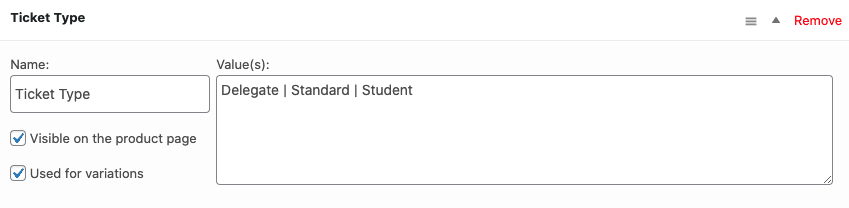
Go to Product Data > Attributes and create an attribute called Ticket Type. In the Values field, specify the different ticket options. Be sure to check the Used for variations option and then click Save attributes.
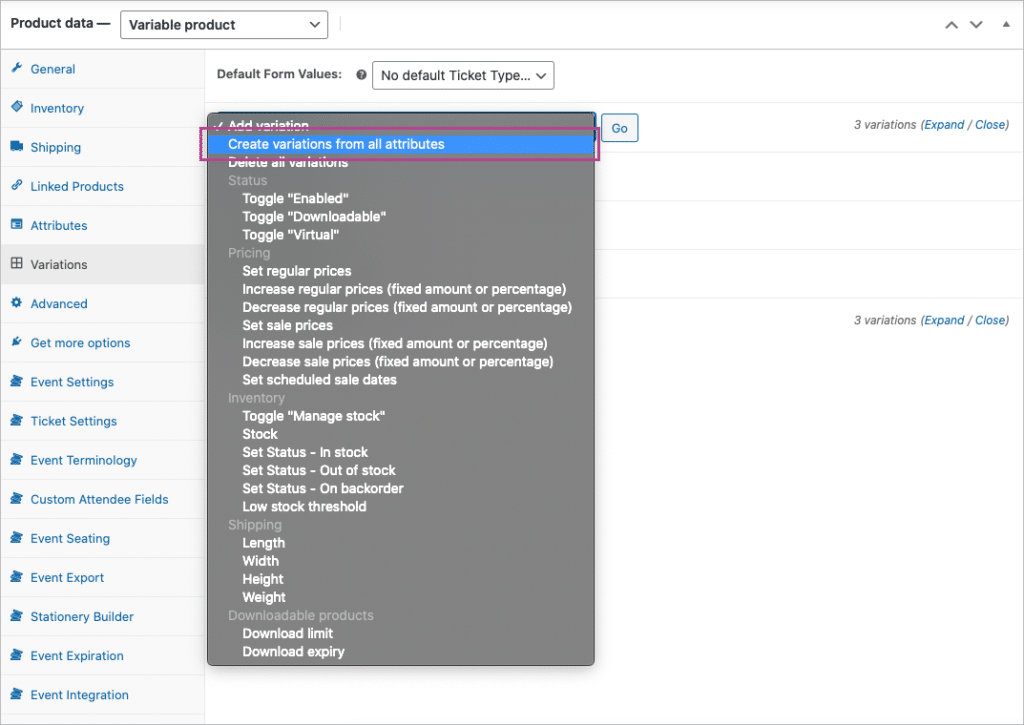
Go to Product Data > Variations. Use the Create variations from all attributes option to generate the variations.
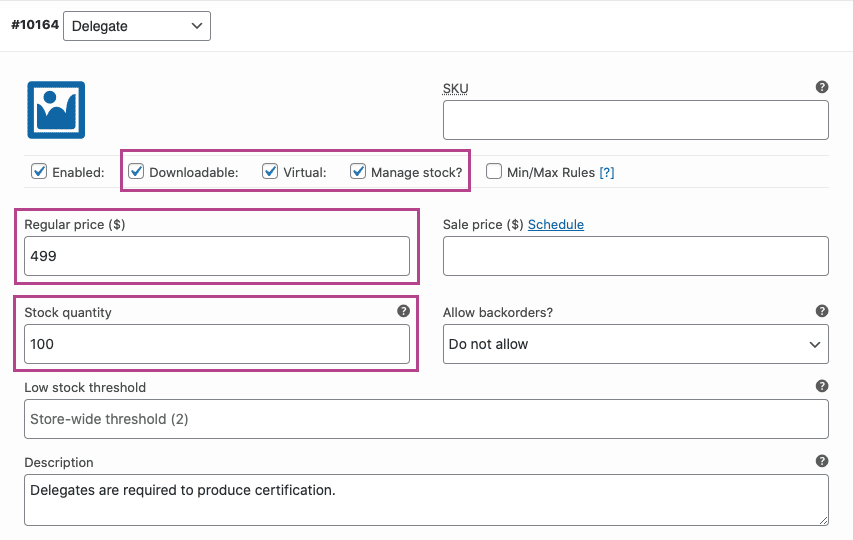
Set each variation to Virtual and set the relevant price. If you want to manage capacity per ticket type, enable Manage stock for each variation and set the number of tickets available using the Stock quantity field.
You can also set each variation to Downloadable if that matches your store configuration, but this is not required for FooEvents to generate and send tickets.
Enable the Attendee Details Page
For this multi-day conference setup, attendee details should be collected before checkout using the Attendee Details Page. This provides a dedicated step where purchasers can enter attendee information for each ticket before continuing to WooCommerce checkout.
Go to FooEvents > Settings > Attendee and enable Enable Attendee Details page. FooEvents can automatically create the Attendee Details page, but if you use your own page, make sure it includes the following shortcode:
[fooevents_attendee_form]
Select the page in the Attendee Details page setting and save your changes.
You can also enable the copy attendee details option if you want purchasers to copy details from the first attendee to the remaining attendees. This can be useful when one person registers a group of attendees from the same company.
For more information, see the Attendee Details Page guide.
Event Settings
Go to Product Data > Event Settings.
To activate event functionality, set Is this product an event? to Yes.
The following multi-day options are provided by the FooEvents Multi-day plugin.
For multi-day events, you can set the event type to either Sequential days or Specific days.
- Sequential days should be used when the event runs over a fixed number of consecutive days.
- Specific days should be used when the event takes place on selected calendar dates that are not necessarily consecutive.
For this example, use the Specific days option. Once selected, choose the number of days over which the conference will take place and set the date for each day.
If your conference runs on consecutive dates, you can use Sequential days instead and set the number of days. Choose the option that best matches the event schedule.
Complete the venue details, organizer contact details and any custom messages that should display on the thank-you page or event details tab. For a conference, this could include registration desk opening times, parking information, daily arrival instructions or a reminder to bring a digital or printed ticket.
In the Attendee Details section, enable the attendee fields that should be captured for each ticket. For this conference setup, enable attendee full name, attendee email address, attendee phone number, company name and designation.
These fields ensure that each ticket is linked to the correct attendee rather than only the purchaser. Attendee information will be captured on the Attendee Details Page before checkout.
Options related to bookings can be ignored for this multi-day conference setup. The remaining event options can be configured based on your preferences.
Default Check-in Day
For multi-day events, it is important that staff check attendees in against the correct event day. If your team uses the FooEvents Check-ins app, configure the default check-in day where needed so the app opens on the most relevant day for the check-in team.
This is useful when different staff members are responsible for different registration desks, event days or session entrances. It reduces the chance of staff accidentally checking attendees in against the wrong day during busy registration periods.
Ticket Settings
Go to Product Data > Ticket Settings.
Select the relevant HTML ticket theme and, if FooEvents PDF Tickets is installed and enabled, select the relevant PDF ticket theme. For a professional conference, use a branded ticket theme that includes your conference logo, colors, event name, venue, conference dates, and barcode or QR code.
Set the ticket logo and header image if your selected ticket theme supports these options. You can also change the subject of the ticket email using the Ticket email subject field.
If you would like to convey information that only attendees should receive, use the Ticket email body field. This is useful for arrival times, registration desk location, parking details, event rules or what attendees should bring.
Enable the ticket settings that match your conference workflow. In most cases, you should display attendee details, date and time, barcode or QR code, multi-day details and custom attendee details on the ticket. You should also enable ticket emails and, if you want each attendee to receive their own ticket directly, enable the option to email the ticket to the attendee rather than the purchaser.
For more information, see the ticket configuration guide.
Enable PDF tickets
Requires the FooEvents PDF Tickets plugin.
Go to FooEvents > Settings > PDF Tickets and enable PDF tickets. You can also choose whether PDF tickets should be downloadable and whether they should be attached to the HTML ticket email.
After enabling PDF tickets globally, return to the conference product and confirm that the correct PDF ticket theme is selected under Product Data > Ticket Settings.
PDF tickets are useful for conferences because attendees often expect a printable or downloadable ticket that they can save on their phone or bring to the venue.
For more information, see the FooEvents PDF Tickets guide.
Custom Attendee Fields
Requires the FooEvents Custom Attendee Fields plugin.
Go to Product Data > Custom Attendee Fields.
Create the custom attendee fields that are specific to your conference registration process. These fields will be captured for each individual attendee and can be viewed in the WordPress admin area, included in exports, displayed on tickets where enabled, and viewed in the FooEvents Check-ins apps.
For this conference setup, useful custom attendee fields include T-shirt size and Dietary requirements. If you did not use the standard attendee fields for company and designation, you can also create custom fields for Company and Job title.
For dietary requirements, use a text field or textarea so attendees can provide allergies or special requests. For T-shirt size, use a select field so attendees choose from fixed options such as Small, Medium, Large, XL and XXL.
Mark important fields as required where needed. Required fields must be completed on the Attendee Details Page before the customer can continue to checkout.
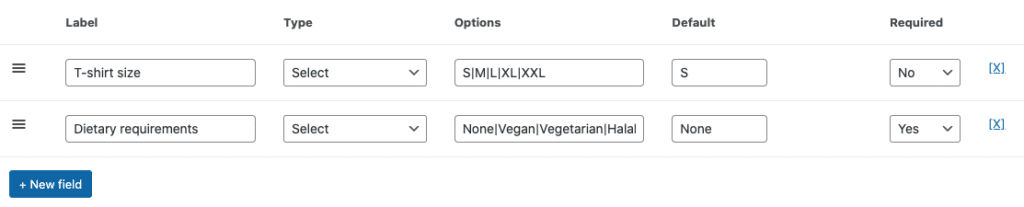
Once you have reviewed all settings, click Save or Publish. Your event should then be visible on the front-end of your website.
Variation table layout
By default, WooCommerce displays variations in a dropdown field on the product page:

FooEvents now includes a built-in option to display supported event variations in a table layout. This is useful for conference registration sites because it allows customers to view ticket types, prices and availability in a clearer format.
You can enable the variation table globally by going to FooEvents > Settings > General and enabling Display event variations as a table.
You can also control this per event by going to Product Data > Event Settings > Display Options and setting Display variations as a table to either use the global setting, enable it for this event, or disable it for this event.
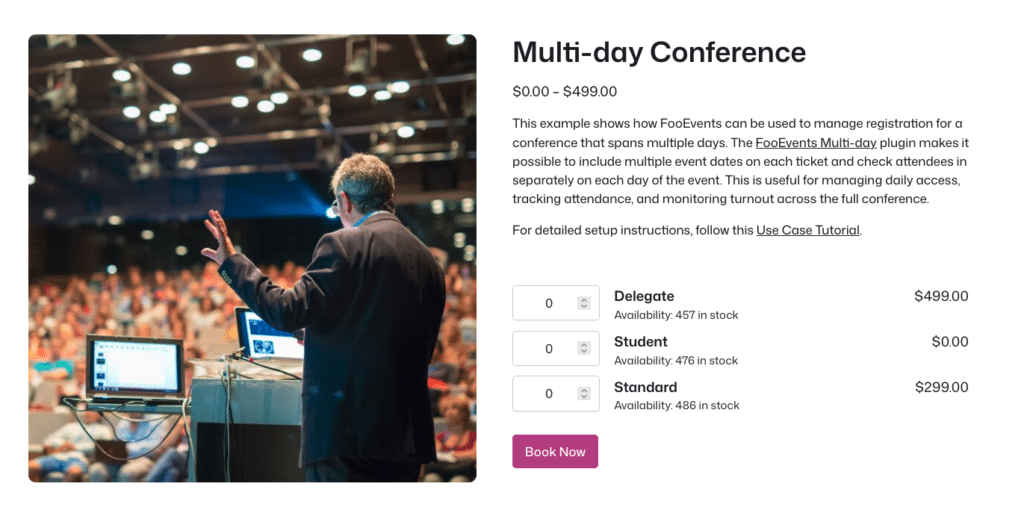
Important: The variation table display depends on the WooCommerce product and variation configuration. Avoid using blank or “Any” variation values for ticket types, as these can prevent the table layout from being used correctly.
Usage
Similar to this demo example, your customers should now be able to select one or more ticket types and add them to their cart.
They will then be directed to the Attendee Details Page, where they must complete the required attendee fields for each ticket before continuing to checkout. After attendee details are saved, the customer can complete payment through the standard WooCommerce checkout process.
Tickets
Once payment has been completed and the order reaches the configured ticket generation status, FooEvents will generate a ticket for each attendee. This status is controlled by the Send on order status setting under FooEvents > Settings > General.
If the option to email tickets to attendees is enabled, each attendee will receive their own ticket email. Based on the ticket settings that were enabled, the ticket can include attendee information, custom attendee fields, conference details, the dates of each day of the conference, barcode or QR code, and PDF ticket attachment or download link.
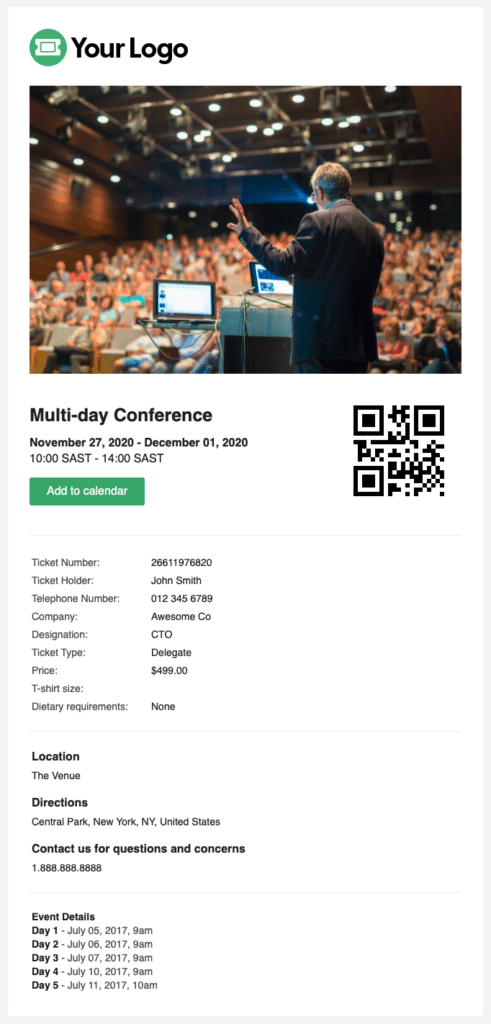
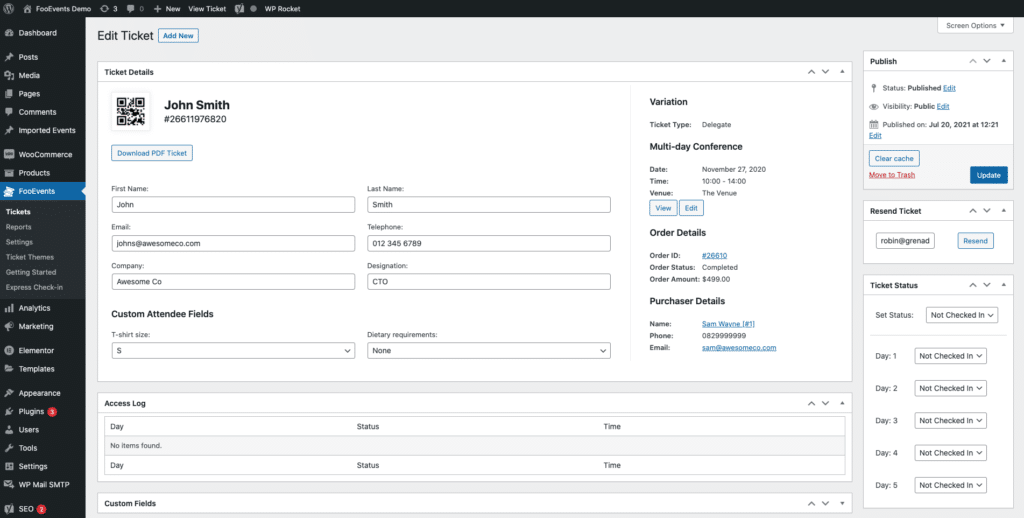
The ticket can also be viewed in the WordPress admin area. Go to FooEvents > Tickets and select the relevant ticket:
Exporting Attendees
You can export a CSV file for each event which includes ticket numbers, custom attendee fields, check-in data, purchaser details and attendee details. The CSV can then be imported into your CRM system or used to prepare registration lists, badge data, dietary requirement summaries or event reports.
To export attendees for the conference, edit the event product and go to Product Data > Event Export. Configure the export options and download the attendee CSV.
Alternatively, you can use a solution such as WP Fusion, which offers an integration with FooEvents that allows you to dynamically add event attendees as contacts to your CRM of choice. You can also optionally apply tags based on the event ticket purchased.
Attendee Check-ins
The status of a ticket can be changed from Not Checked In to Checked In, Canceled or Unpaid. For multi-day events, check-ins are applied separately for each day of the event.
This can be done by editing the ticket in the WordPress admin area or by using the free FooEvents Check-ins app. The app can be used to search for attendees, scan the barcode or QR code on a ticket, select the relevant event day, and update the attendee’s check-in status.
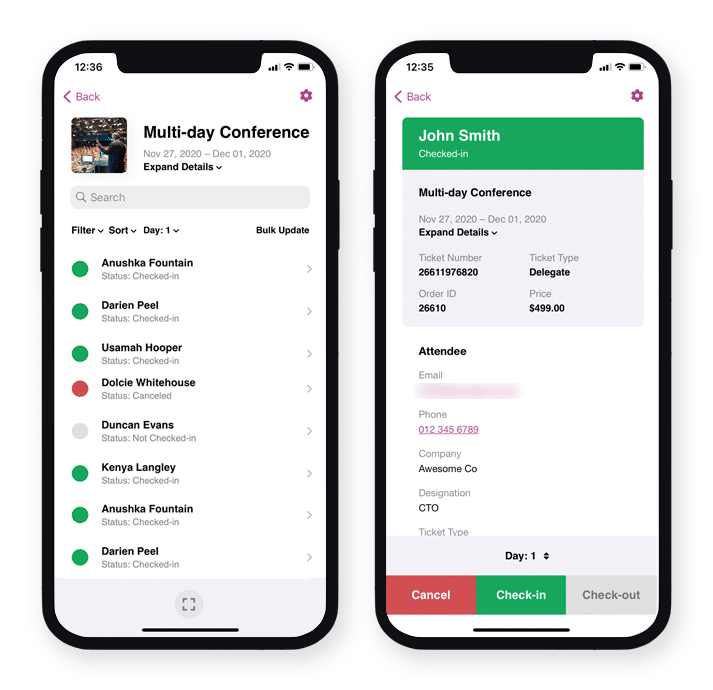
Before the conference, complete at least one test check-in for each event day using a real test ticket. Confirm that the attendee can be found, the barcode or QR code scans correctly, the correct day is selected, and the check-in status updates in WordPress.
For more information, see the FooEvents Check-ins app help guide and the attendee check-ins guide.
Printing name tags
The built-in FooEvents Stationery Builder can be used to design and print custom name tags, wristbands, tickets, badges and personalized labels.
For a conference, a basic name tag could include the attendee name, company, designation, ticket type and barcode or QR code. If you captured a custom badge name field, you can use that field as the main name displayed on the badge.
Before printing the full attendee list, generate a test output and confirm that the layout, field mapping and print size are correct.
Final checks before opening registration
Before opening ticket sales to the public, complete a full test registration from start to finish.
Confirm that the product page displays the correct conference information, ticket types, prices and stock quantities. Add multiple ticket types to the cart, complete the Attendee Details Page, confirm that required fields cannot be skipped, and complete checkout using a test payment method.
After checkout, confirm that tickets are generated at the expected order status, ticket emails are sent correctly, PDF tickets are available, multi-day details display correctly on the ticket, attendee details are visible in FooEvents > Tickets, attendee data can be exported, badges can be generated, and check-ins work correctly for each day of the event.
Questions and Feedback
Have a question before you buy? Please get in touch. If you are ready to get started, you can purchase a license here.
Already purchased and need assistance? Contact our support team.