

This guide provides a comprehensive overview of the Attendee Details Page feature for FooEvents for WooCommerce version 2.0.0. This new workflow optimizes the checkout process by separating attendee data collection from checkout.
Table of Contents #
- Overview and Purpose
- Workflow and User Experience
- Setup Guide
- Extension Compatibility (Bookings, Seating, and Fields)
- Stripe Express Payments
- Frequently Asked Questions (FAQs)
Overview and Purpose
The Attendee Details Page adds a dedicated step for collecting attendee information before checkout. Instead of showing attendee fields on the checkout screen, customers complete attendee details on a separate, dedicated attendee page and then continue to checkout. This keeps checkout simpler, works with both the WooCommerce Classic Checkout and the Checkout Block, and provides a single, consistent flow across all stores.
This feature is designed to reduce checkout clutter, avoid limitations in the Checkout Block, and create a future-proof attendee flow that works the same way across all WooCommerce checkout experiences.
- Simplicity: Keeps the checkout screen clean and focused on payment, potentially improving conversion rates.
- Universal Compatibility: Works with both the WooCommerce Classic Checkout and the Checkout Block.
- Consistency: Provides a single, predictable flow regardless of the theme or checkout type used.
Note: This feature is not enabled by default. It is currently in beta, and we recommend first testing it on a staging environment before enabling it on a production site.
Workflow and User Experience
When enabled, the purchase journey follows a structured sequence to ensure all required data is captured:
- Selection: A customer adds a FooEvents product to their cart.
- Data Entry: When proceeding to checkout, the customer is first redirected to the Attendee Details Page.
- Completion: They enter details (names, emails, custom fields) for each ticket.
- Verification: If a user attempts to skip this step, FooEvents will redirect them back until all required fields are completed.
- Checkout: Once details are saved, the customer proceeds to the checkout page to complete the payment.
Setup Guide
Enable the Attendee Details Page
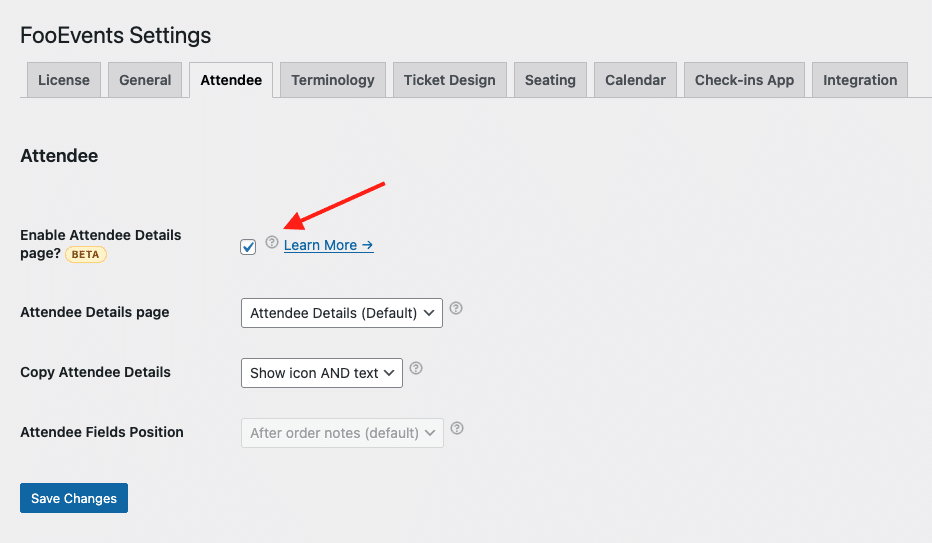
- Go to WordPress Admin → FooEvents → Settings → Attendees.
- Enable Attendee Details Page.
- Save changes.
Enable the Copy Attendee Details Option (optional)
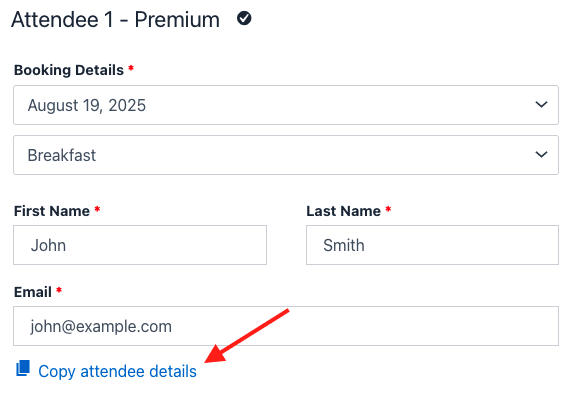
The Attendee Details Page supports copying the first attendee’s details to the remaining attendees for that product, similar to the “Copy purchaser details” option in the classic checkout. Follow these steps to enable it:
- Go to WordPress Admin → FooEvents → Settings → Attendees.
- Enable Attendee Details Page.
- Save changes.
Confirm the page and shortcode
When enabled, FooEvents will automatically create a page named Attendee Details with this shortcode:
[fooevents_attendee_form]
If you want to use a different page:
- Create or open the page you want to use.
- Add the shortcode to the content.
- Go back to FooEvents → Settings → Attendees.
- Select that page under Attendee Details Page and save.
FooEvents uses the page ID to identify the page, so you can rename the page title and slug at any time.
Troubleshooting: Attendee page shows 404
If you see a 404 on the Attendee Details Page:
- Go to WordPress Admin → Settings → Permalinks.
- Click Save Changes to flush rewrites.
- Confirm the Attendee Details Page is published and selected in FooEvents → Settings → Attendees.
- Make sure the page still contains the shortcode.
If the issue persists, clear any site/server/CDN cache and try again.
Important: Update all FooEvents Extensions #
Before using the Attendee Details Page, you must update all FooEvents plugins on your site to the latest versions.
If you use FooEvents Custom Attendee Fields, FooEvents Seating, or FooEvents Bookings, those plugins must also be updated. If they are not, the Attendee Details Page will not work correctly with those features.
We recommend updating FooEvents for WooCommerce and all installed FooEvents extensions before enabling the Attendee Details Page, and testing the new flow on a staging site first.
Extension Compatibility
The Attendee Details Page is fully integrated with FooEvents extensions. Here is how specific extensions behave in this new flow:
FooEvents Bookings
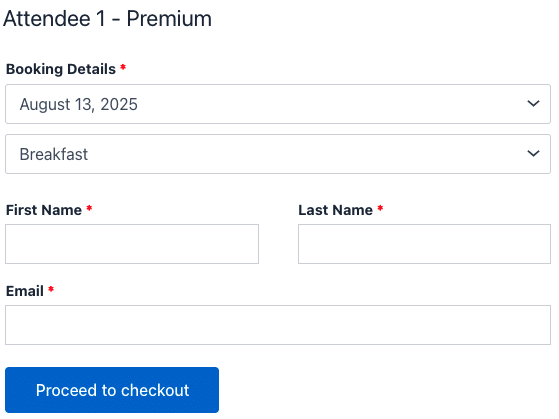
With the Attendee Details Page enabled, booking selection can appear on the Attendee Details Page depending on the event’s Booking Display setting.
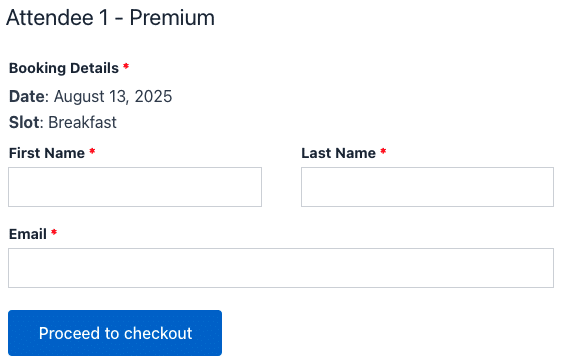
If your event is configured to only capture bookings on the product page, customers must still make a booking selection there before they can add the product to the cart. In that case, the Attendee Details Page shows the chosen booking selection rather than replacing it.
The Attendee Details Page currently only supports the Date → Slot format for bookings.
FooEvents Seating
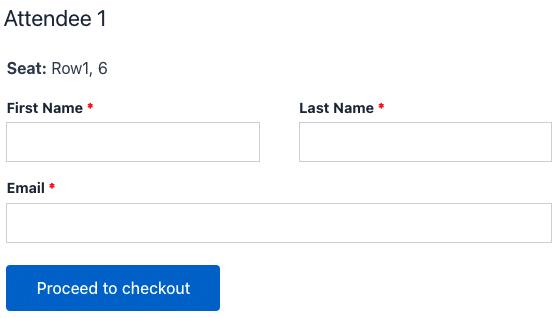
Seating selection still happens on the product page. The Attendee Details Page shows the selected seats in a read-only format, so attendees can see what was chosen but cannot change seats there.
Previously, seat selection could also be set on the checkout screen. If the Attendee Details Page is enabled, seating selection will only take place on the product page. Text showing the selected seats will display on the Attendee Details Page; however, they cannot be modified here.
FooEvents Custom Attendee Fields
Custom Attendee Fields appear on the Attendee Details Page and validate the same way they did at checkout. Required fields, email/url/number validation, and per-ticket fields are all supported.
Previously, these fields were shown on the checkout page. With the new flow, they are captured earlier, keeping checkout clean and avoiding Checkout Block limitations.
Stripe Express Payments Compatibility
The FooEvents Attendee Details Page works perfectly with Stripe Express Payments. However, if you use the WooCommerce Stripe Payment Gateway and have express payments enabled on the product or cart pages (Apple Pay / Google Pay / express checkout buttons), those flows can bypass the Attendee Details Page and complete the order without collecting attendee information.
To avoid this, keep express payments disabled on product and cart pages for FooEvents products when the Attendee Details Page is enabled. Express payments at checkout are not affected.
Frequently Asked Questions (FAQs)
Why am I being redirected to the Attendee Details Page?
This happens when the cart contains FooEvents tickets that require attendee details.
Why am I landing on Checkout first instead of the Attendee Details Page?
This is usually caused by page caching or a missing shortcode. Clear any site/server/CDN cache and confirm the page contains [fooevents_attendee_form].
I’m seeing a 404 on the Attendee Details Page. What do I do?
Go to Settings → Permalinks and click Save to flush rewrites.
Why don’t I see attendee fields at checkout anymore?
When this feature is enabled, fields move off the checkout screen to the dedicated attendee page.
Why are booking selectors missing or in the wrong place?
Check the event’s Booking Display setting. Bookings can be shown on the product page, attendee page, or both.
Why are seats read-only on the Attendee Details Page?
Seat selection happens on the product page. The Attendee Details Page only displays the selection for verification.
Can I rename or move the Attendee Details Page?
Yes. You can change the page title/slug, or move the shortcode to a different page and update your settings.
Will non-event products be affected?
No. The attendee step only appears when the cart contains products that require attendee details.