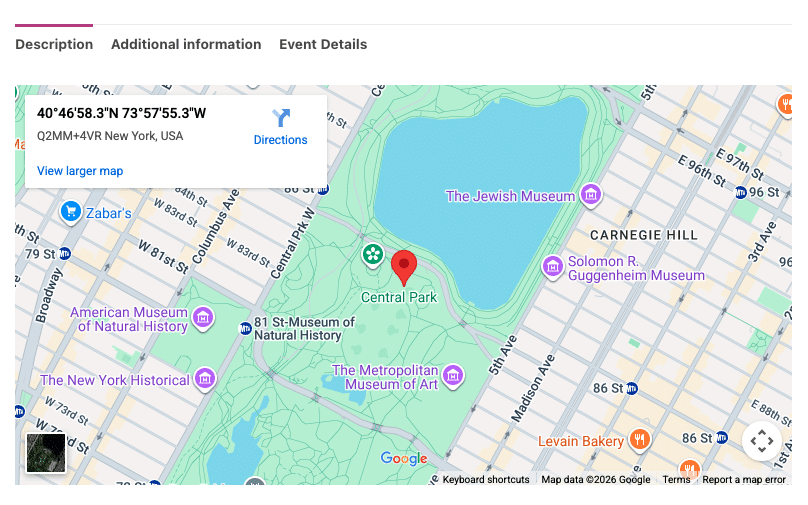

FooEvents vi consente di visualizzare le mappe dei vostri eventi/prodotti utilizzando Google Maps. È possibile scegliere tra due metodi di incorporazione delle mappe.
Scelta del metodo di incorporazione:
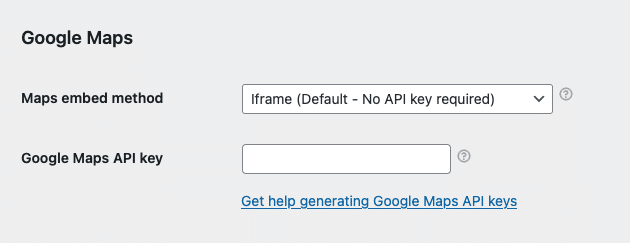
- Andare a FooEvents > Impostazioni > Integrazione > Google Maps
- Selezionare un Mappe Metodo di incorporazione:
- Iframe - Gratuito e non richiede una chiave API di Google Maps - raccomandato
- JavaScript - Richiede una chiave API di Google Maps a pagamento - opzione legacy; evitare
Metodo 1: Iframe - consigliato
Il metodo iframe è semplice, gratuito e facile da configurare. È sufficiente selezionare il metodo iframe e inserire le coordinate GPS della sede durante la modifica degli eventi (vedi sotto).
Metodo 2: JavaScript - opzione legacy a pagamento; evitare
Il metodo JavaScript è un'opzione precedente all'introduzione del metodo iframe. Richiede la creazione di una chiave API di Google Maps a pagamento. Inoltre, è più soggetto a conflitti JavaScript con temi e plugin di terze parti. Per questo motivo, si consiglia di utilizzare l'opzione iframe, che è più robusta e fornisce funzionalità simili.
Se si decide di utilizzare il metodo JavaScript, è necessario generare una chiave API di Google Maps. Seguire queste istruzioni:
- È possibile generare un Chiave API di Google Maps seguendo queste istruzioni: https://developers.google.com/maps/documentation/javascript/get-api-key
- Una volta generato un file Chiave API di Google Maps, inserirlo qui: FooEvents > Impostazioni > Integrazione > Chiave API di Google Maps
Ottenere le coordinate GPS corrette:
Quanto segue si applica sia al metodo iframe che al metodo di incorporazione JavaScript.
Vai a maps.google.com e cercare la sede o l'indirizzo. Una volta trovato, fate clic con il tasto destro del mouse sul luogo, fate clic sulle coordinate e copiatele negli appunti. Incollatele nel campo “Coordinate di Google Map" quando si modifica l'evento nella cartella Area di amministrazione WordPress.
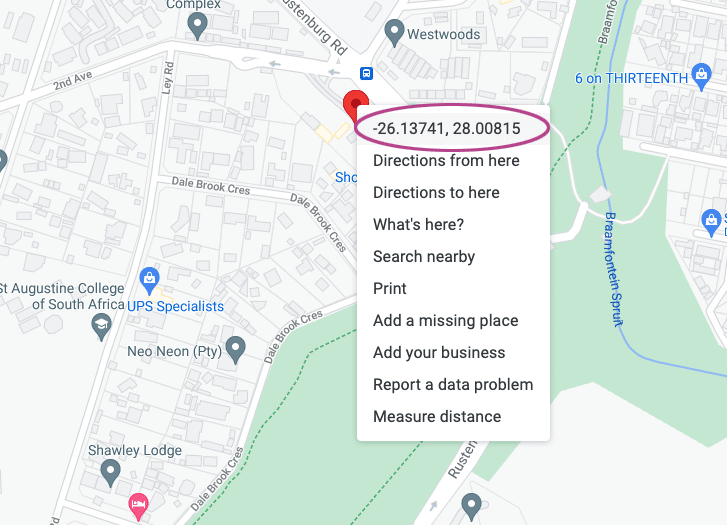
Il formato delle coordinate di Google Maps dovrebbe essere il seguente: -26.13741, 28.00815
Se necessario, è possibile convertire in questo formato utilizzando il seguente strumento:
http://www.gps-coordinates.net/gps-coordinates-converter
Impostazione delle coordinate GPS corrette:
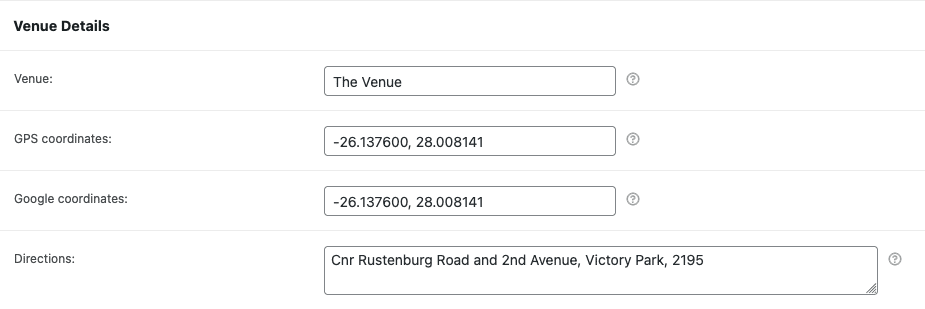
- Navigare verso un prodotto che ha gli eventi abilitati.
- Scorrere fino alla voce Dati del prodotto schede.
- Aprire la sezione Impostazioni evento e scorrere fino alla scheda Dettagli sulla sede sezione.
- Inserire il Coordinate GPS nel Coordinate di Google Map campo.
Visualizzazione della mappa di Google:
Navigare fino al prodotto sul front-end del sito e scorrere fino alle schede del prodotto: